

Add target storage
Target storage holds backup snapshots. This walkthrough uses Huawei Cloud object storage and starts from Target in the backup configuration.
Prepare the connection information
Prepare the Huawei Cloud OBS Endpoint, Region, Bucket, Object Prefix, Access Key, and Secret Key. Use a bucket or object prefix dedicated to HyperFileLens; do not share it with another backup repository or application.
Prepare an IAM user and access key
- Sign in to the Huawei Cloud console.
- Create an IAM user for this test and set its access type to Programmatic access.
- Grant the IAM user the OBS API permissions required for this workflow. HyperFileLens must be able to list buckets. Create New Bucket also requires permission to create a bucket, while repository initialization and use require the necessary object operations on the selected bucket or object prefix.
- Create an access key, complete the email, phone, or virtual MFA verification, and download the key file. You can also manage access keys from My Credentials → Access Keys in the account menu.
Management console access permits console sign-in only; it does not grant OBS API permissions. If HyperFileLens reports that the credentials cannot list buckets, check the IAM user's OBS policies and their scope, allow time for the permission change to take effect, and try again.
The access key and secret key are sensitive. The secret key is normally shown only when it is created. Do not upload the key file, AK/SK values, or an unredacted completed form to a chat, GitHub issue, or Git repository.
Add a repository from the backup configuration
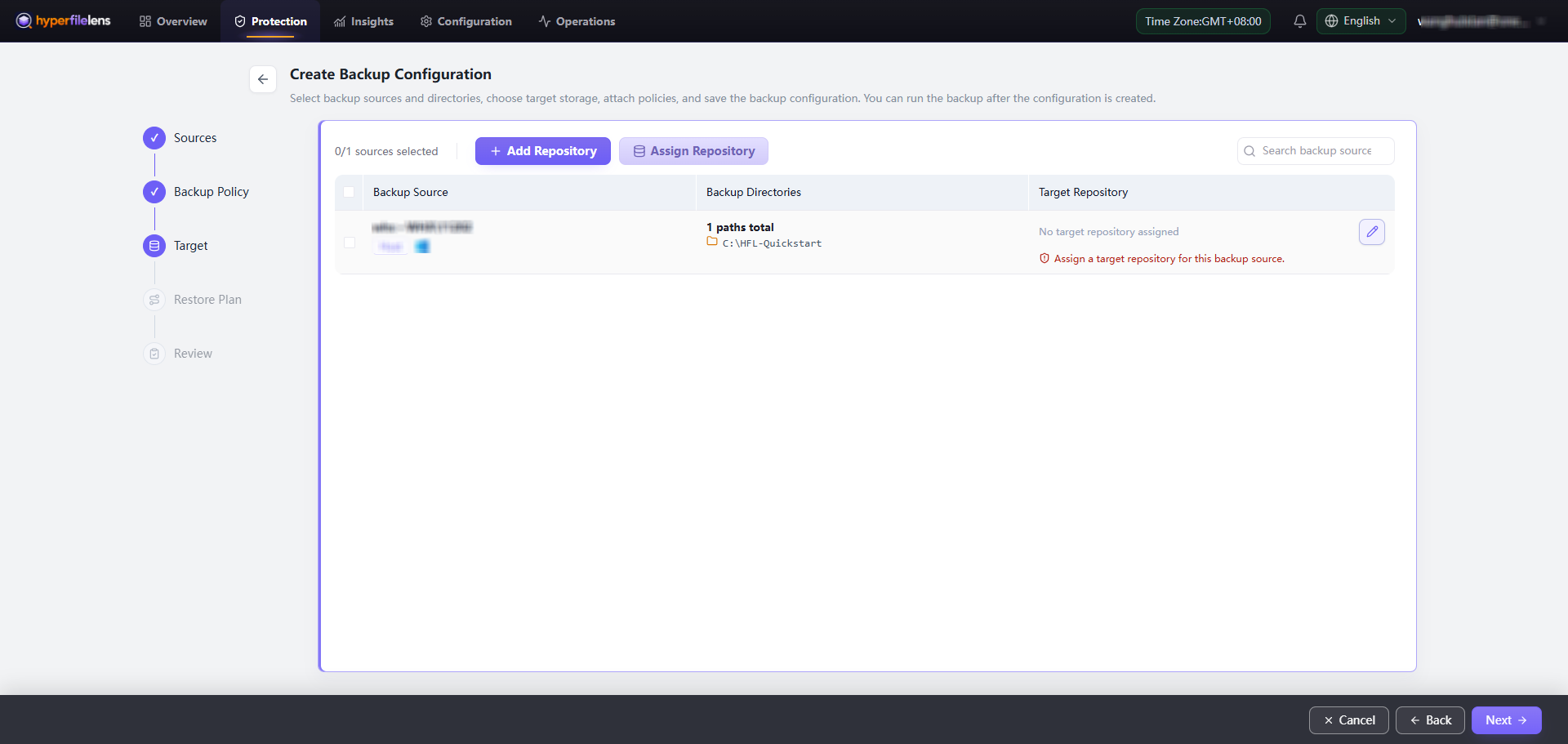
On Target, the Windows source indicates that no target repository is assigned.
- Select Add Repository. HyperFileLens opens the target storage page in a new browser tab.
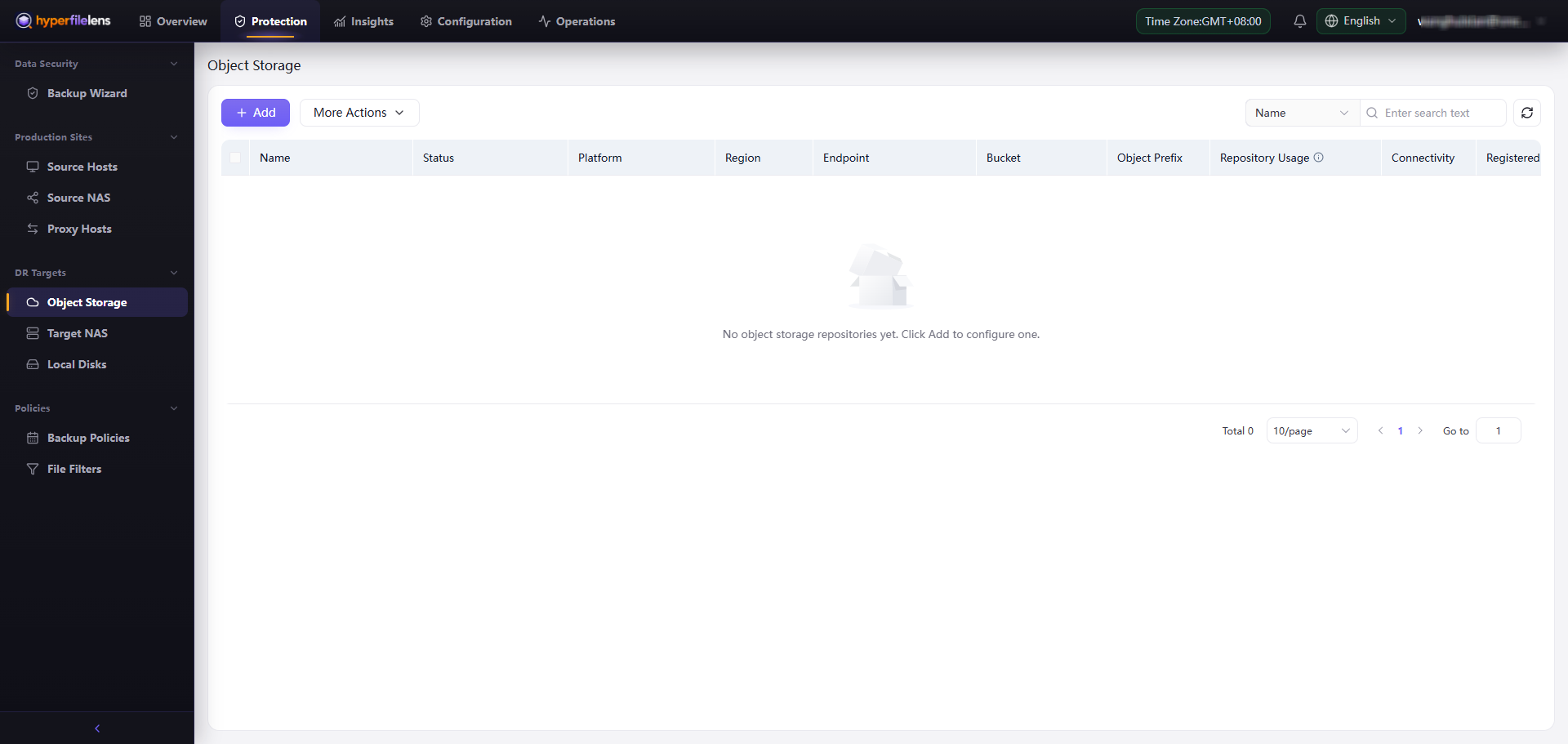
- On Object Storage, select Add.
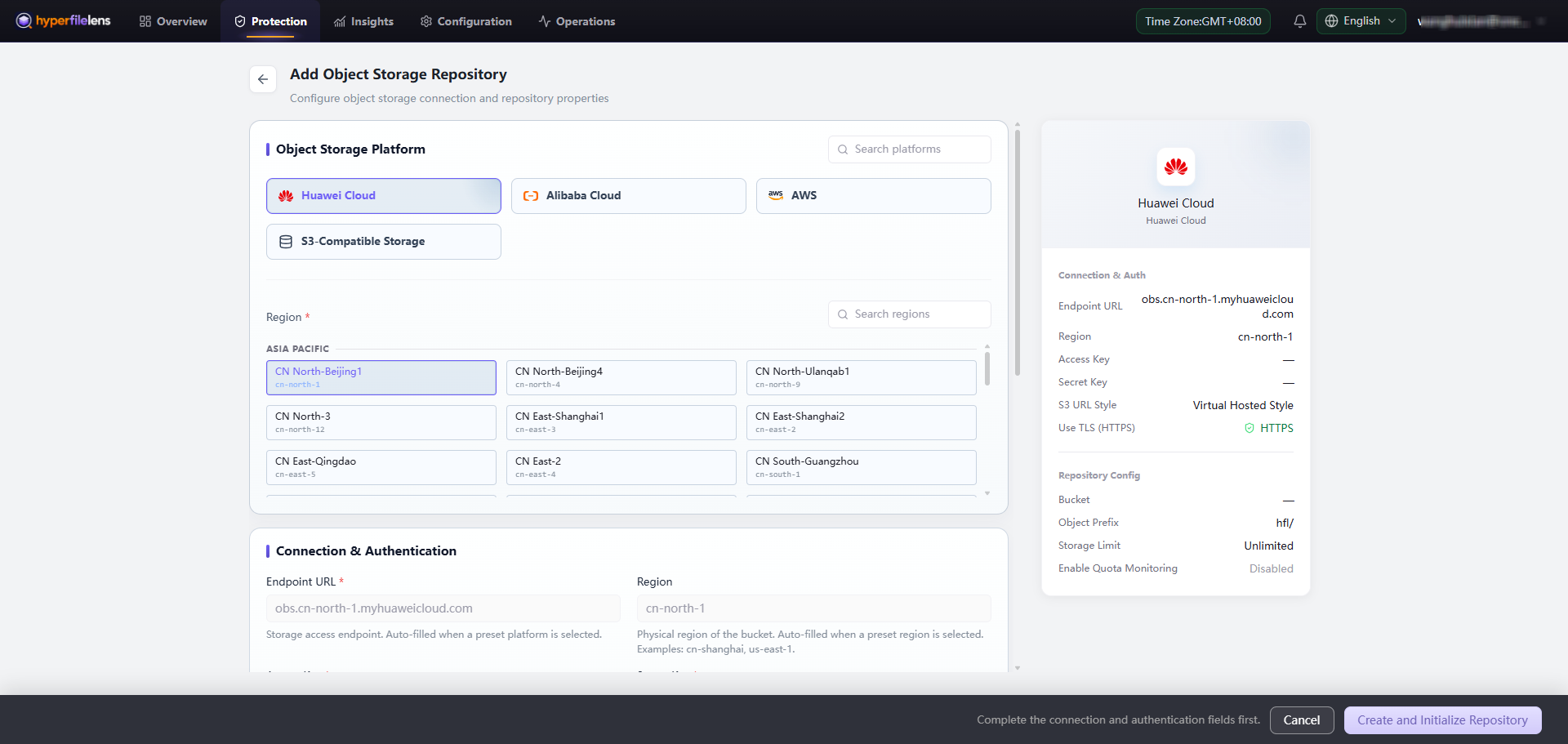
- On Add Object Storage Repository, select Huawei Cloud.
- Select the Region that contains the OBS bucket, then check the automatically populated Endpoint URL and Region.
- Enter the IAM user's Access Key and Secret Key.
- Keep Use TLS (HTTPS) enabled and confirm that the summary shows HTTPS. Do not use HTTP for a public Huawei Cloud OBS connection.
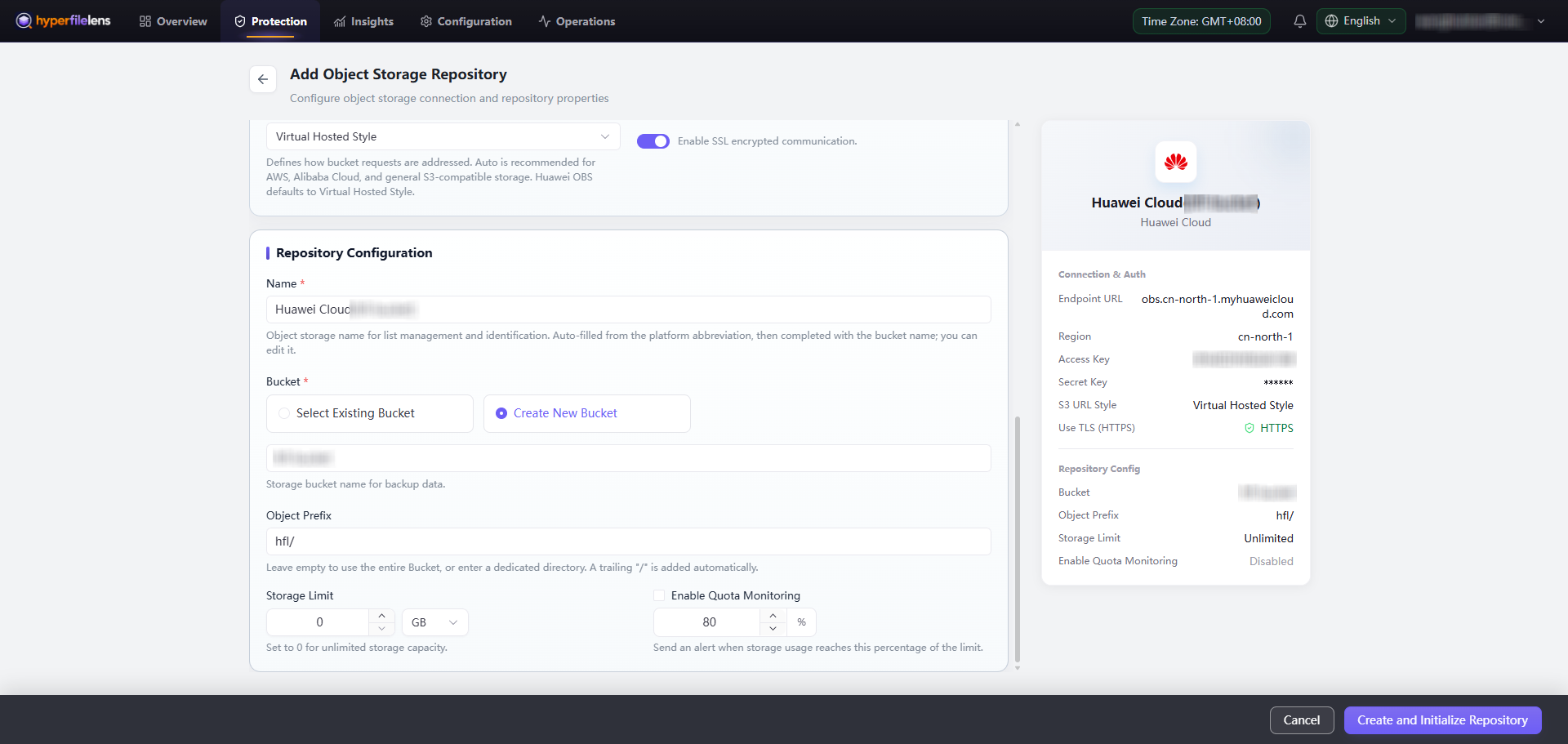
- Select Select Existing Bucket when a dedicated bucket already exists. Otherwise, select Create New Bucket and enter a globally unique bucket name.
- Enter an Object Prefix dedicated to this repository, such as
hfl/, then review the repository name, bucket, and other settings. - Select Create and Initialize Repository.
If the page reports that the credentials cannot list buckets, do not disable TLS or switch to a primary-account key as a workaround. Grant the test IAM user the required OBS API permissions, verify that the policy applies to the correct account or project, allow time for the change to propagate, and validate the connection again.
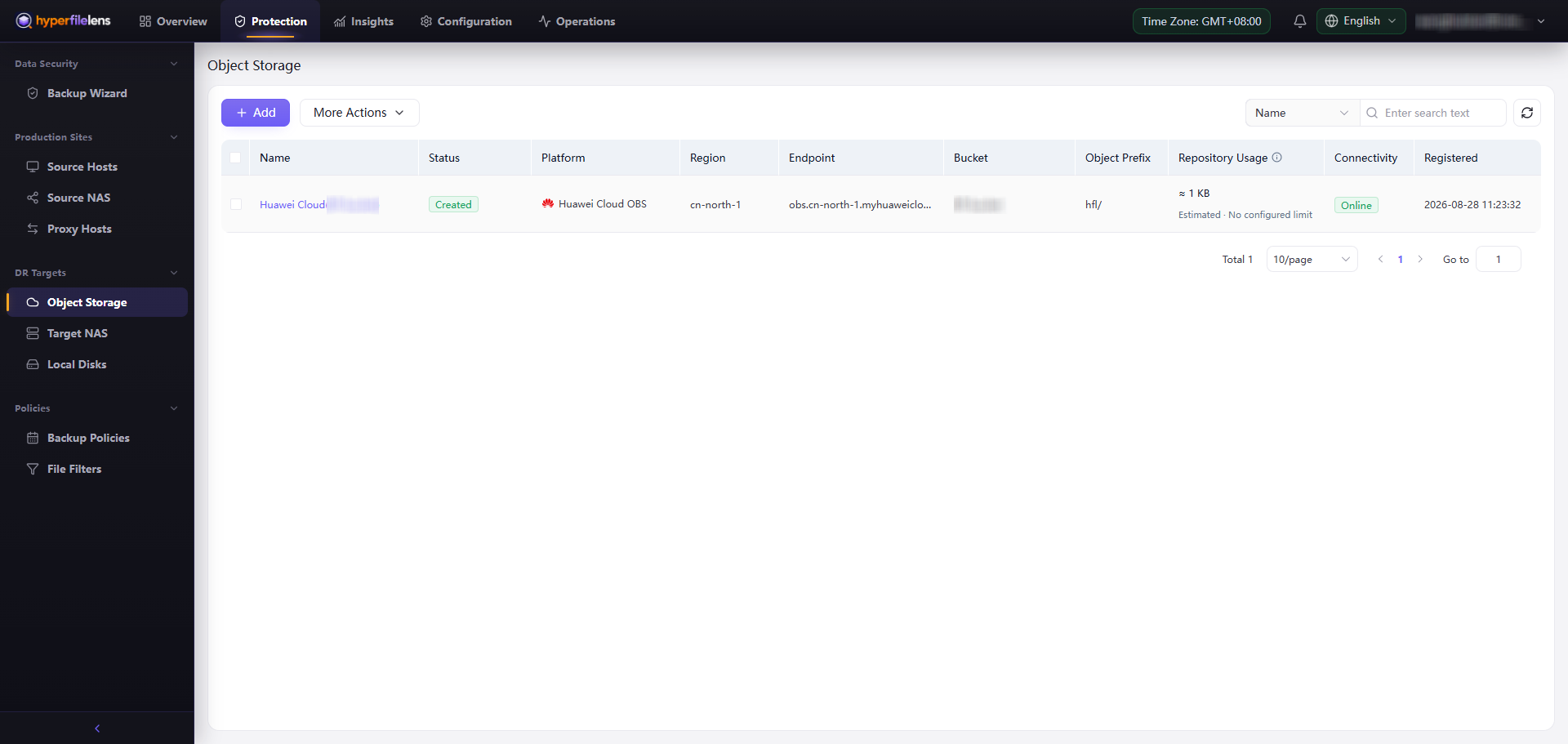
After you select Create and Initialize Repository, HyperFileLens returns to the Object Storage list. Wait for the new repository to show Status: Created and Connectivity: Online. These states indicate that the target repository is ready to use.
After the repository has been created and validated, return to the backup configuration and assign it to the backup source before continuing with the first backup.