

Check tasks and snapshots
A Succeeded task means that the backup job completed. Inspect the resulting snapshot to confirm that it contains the expected files.
Check the task
On Start Backup, confirm that Backup Task shows Succeeded, then check the backup source, backup path, and target repository.
Open Snapshot Points
- Open the Windows backup source details from the backup source list.
- Select the Snapshot Points tab.
- Find the snapshot created by the backup you just ran.
- Confirm that its Status is Available.
- Expand the snapshot and review Size, Restore Size, and Files/Dirs.
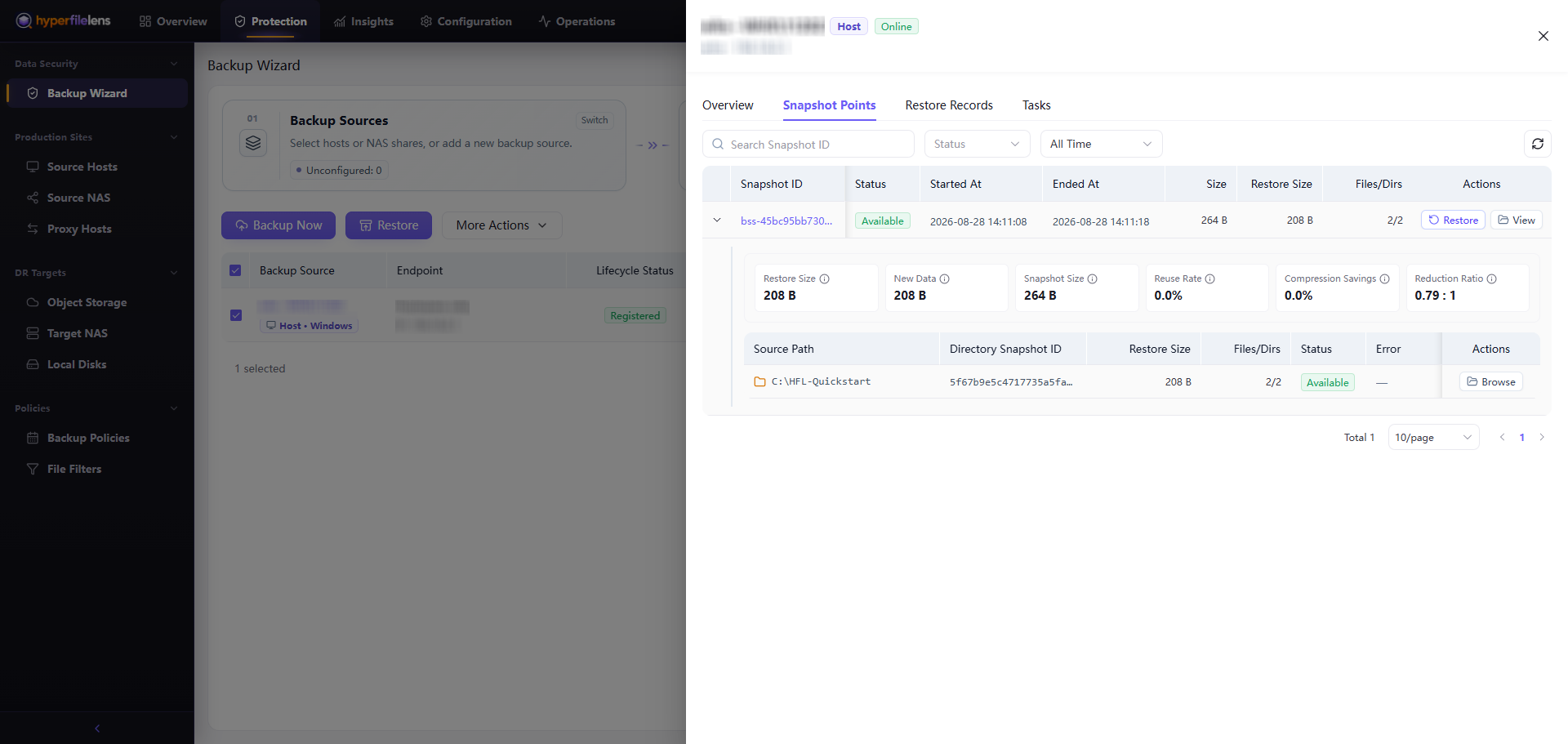
For this test, the source path should be C:\HFL-Quickstart and the snapshot should contain two files: restore-check.txt and insights\device-inventory.csv.
Browse or download snapshot contents
Expand the source path for the snapshot:
- Select Browse to open File and Directory Browser and inspect the directory and file names.
- Select files in the browser, then select Download to download the selected snapshot contents locally.
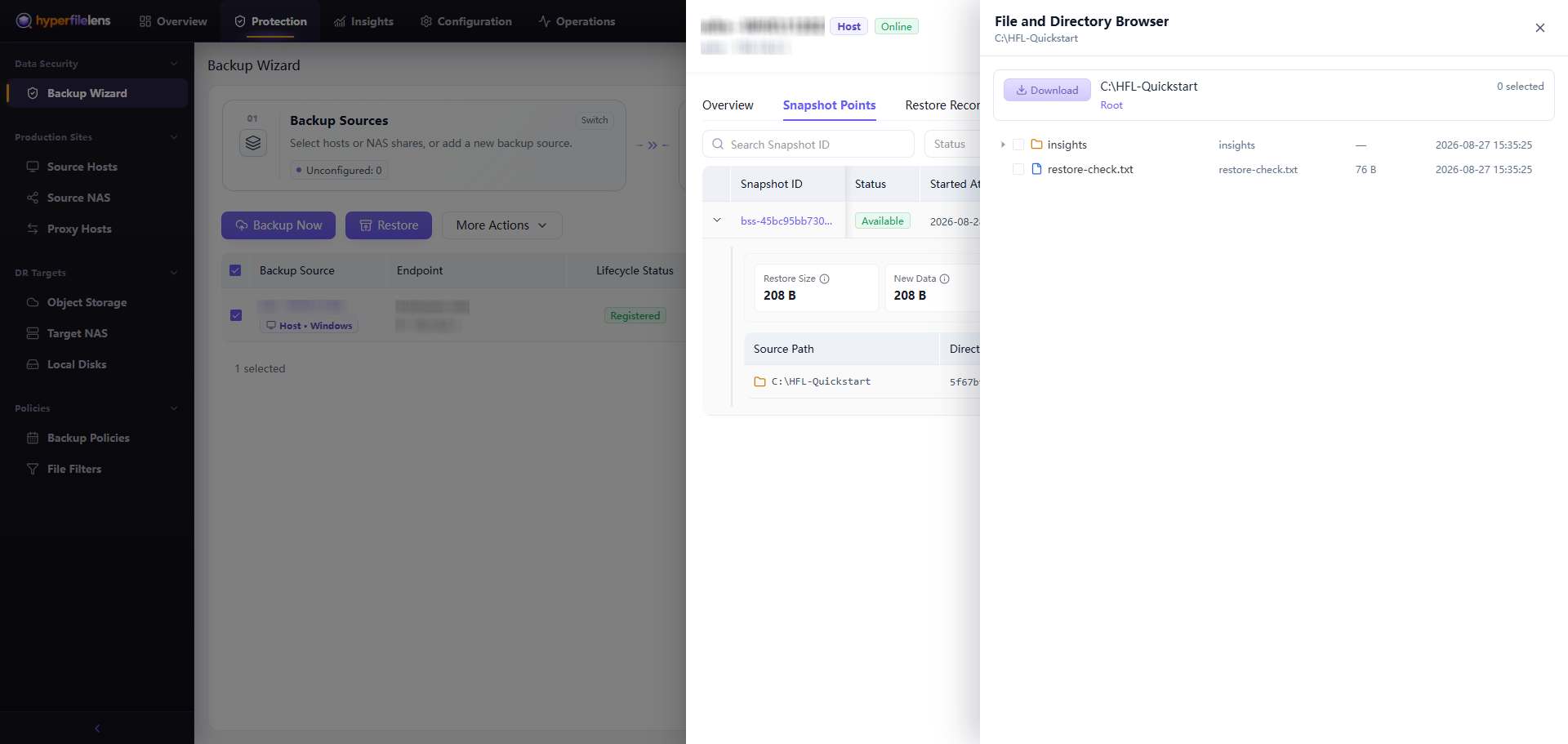
Confirm that both restore-check.txt and insights\device-inventory.csv are visible before restoring a test file. Downloaded files still come from the snapshot; downloading is not a substitute for restore verification.
Completion criteria
- Backup Task is Succeeded.
- The snapshot Status is Available.
- The snapshot source path is
C:\HFL-Quickstart. restore-check.txtandinsights\device-inventory.csvare visible in the browser.