

Add a backup source
This step installs the Agent on the Windows host that contains C:\HFL-Quickstart, registers the host with HyperFileLens, and confirms that it is online. You will select the directory to protect in the next step.
This guide uses C:\HFL-Quickstart and its sample files to demonstrate the complete workflow. For your own backups, select the directories and files you want to protect, then adapt the restore check and Insights questions to that content. You do not need to reproduce the sample dataset exactly.
Before you start
- You are signed in to HyperFileLens with the interface language set to English.
- Your account can add backup sources.
- The Windows host is online and can run PowerShell.
- The directory you want to protect is ready; this guide uses
C:\HFL-Quickstartas its example.
Open the Windows installation page
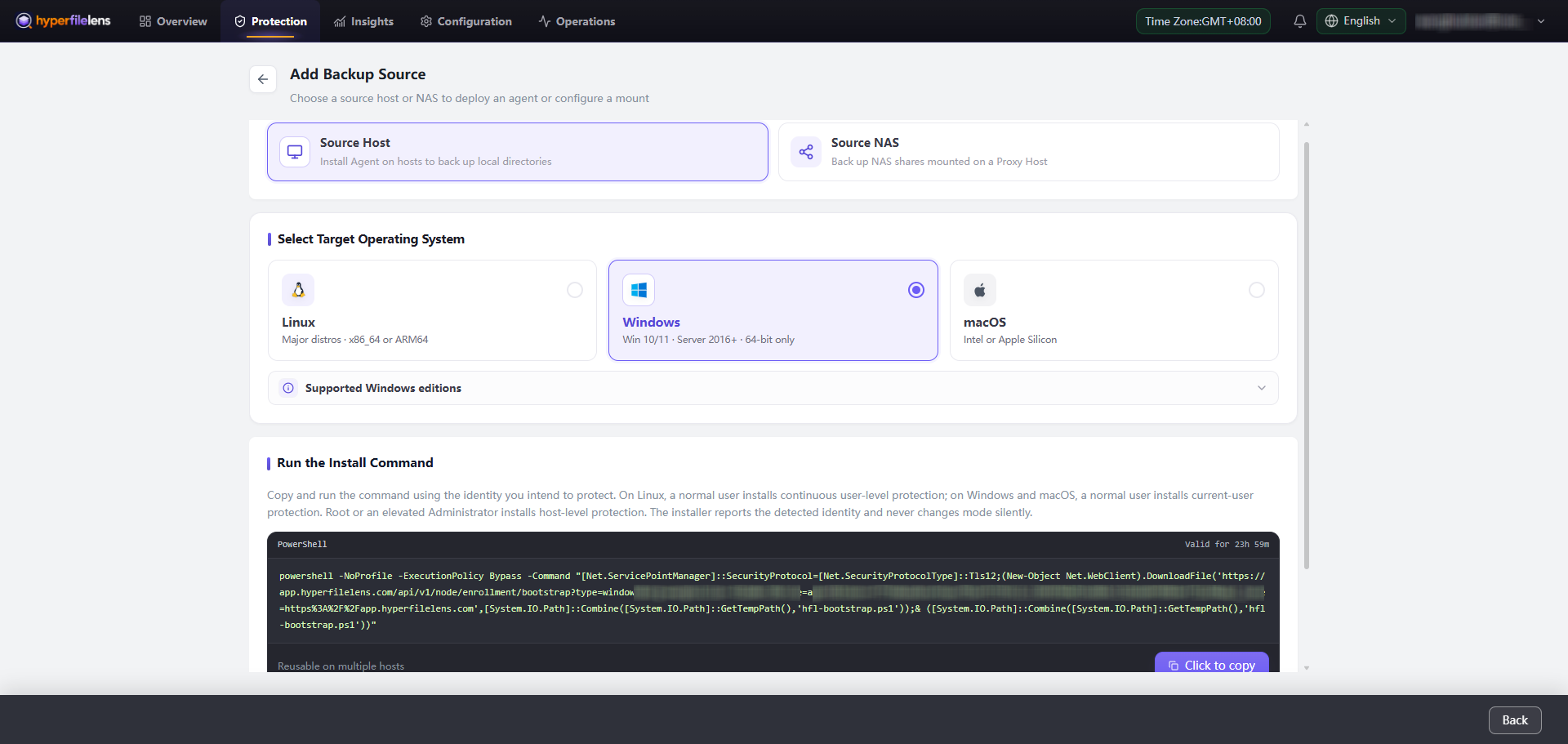
- Open Protection → Backup Wizard.
- Make sure Backup Sources is the current step, then select Add Source.
- Select Source Host.
- Under Select Target Operating System, select Windows.
The Windows installation command appears under Run the Install Command.
Install the Windows Agent
- Select Click to Copy next to the installation command.
- On the Windows host, press Win + R.
- Enter
powershell, then press Enter. - Paste the copied command into PowerShell and press Enter.
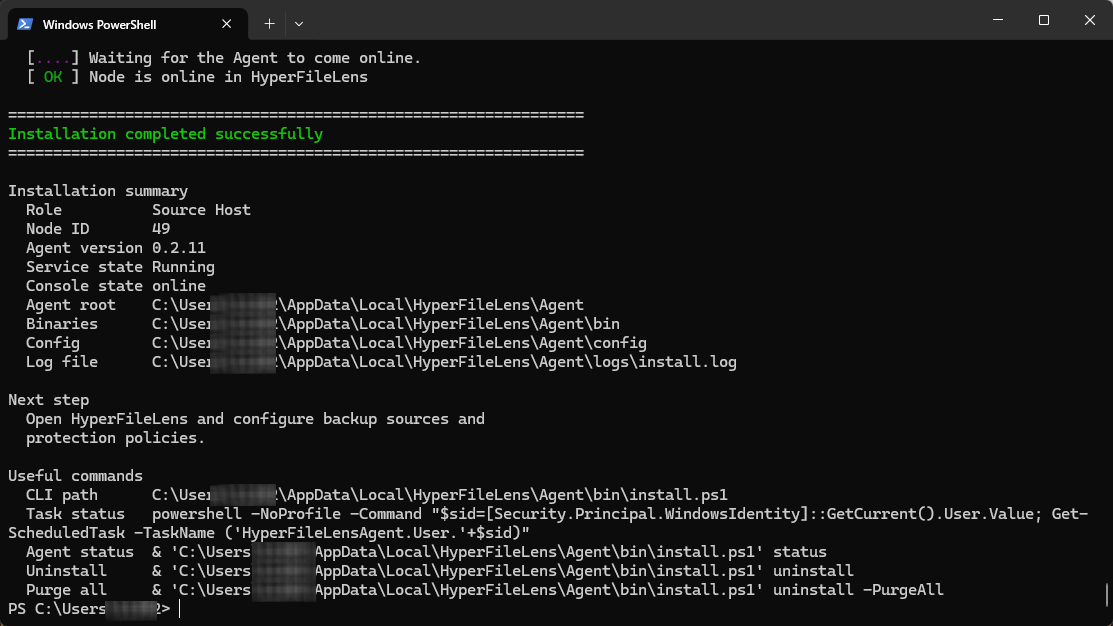
- Wait for the installer to report
Installation completed successfullyandNode is online in HyperFileLens.
The command may contain short-lived registration information. Do not reuse a command from an old screenshot or publish the full command in documentation, a chat, or a public issue.
Confirm that the host is online
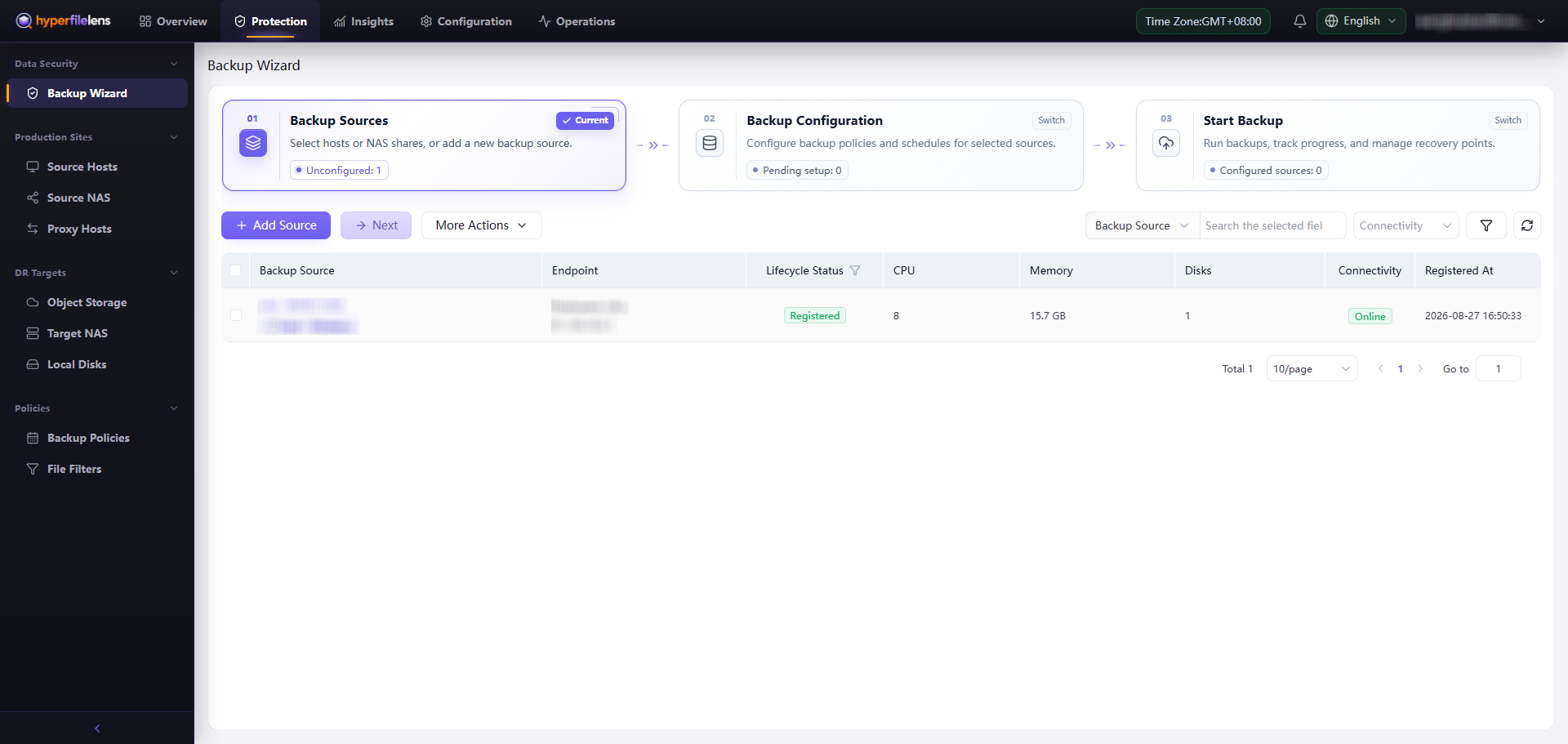
Return to Protection → Backup Wizard and select the refresh button above the source table. Confirm that the new source shows:
- Host · Windows as its type;
- Registered under Lifecycle Status; and
- Online under Connectivity.
Completion criteria
- PowerShell reports that installation succeeded and the node is online.
- The Windows host appears in the Backup Sources table.
- Lifecycle Status is Registered.
- Connectivity is Online.