

Configure the backup source
This step selects the registered Windows host in the Backup Wizard and adds C:\HFL-Quickstart to the backup scope. Do not select the entire system drive.
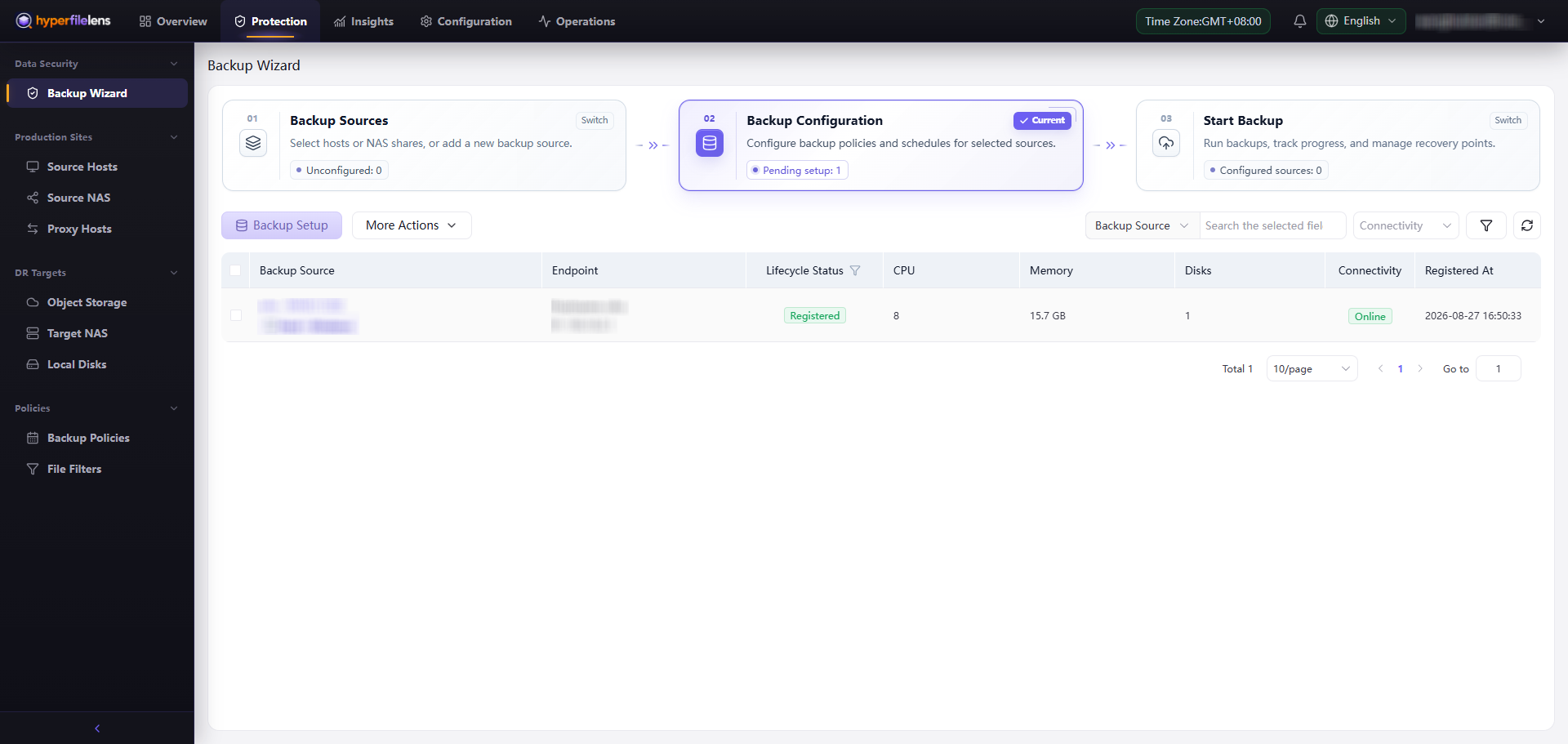
Open Backup Setup
- In the Backup Sources table, select the registered Windows host.
- Select Next to move to Backup Configuration.
- Select the Windows host again, then select Backup Setup.
Select the directory to back up
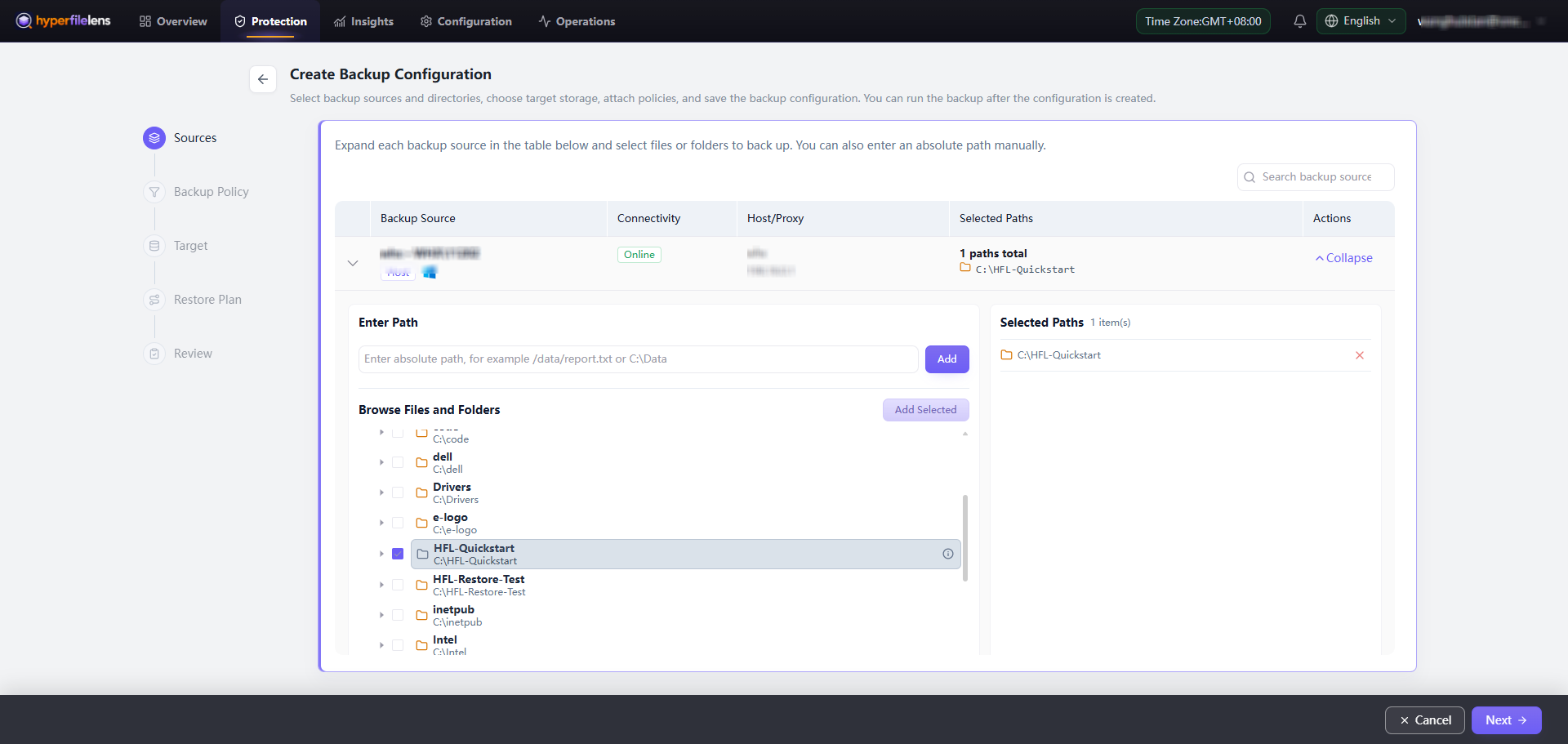
- In Sources, expand the Windows backup source.
- Under Browse Files and Folders, find and select
C:\HFL-Quickstart. - Select Add Selected.
- Confirm that
C:\HFL-Quickstartappears under Selected Paths. - Select Next.
Choose backup policy and file filter settings
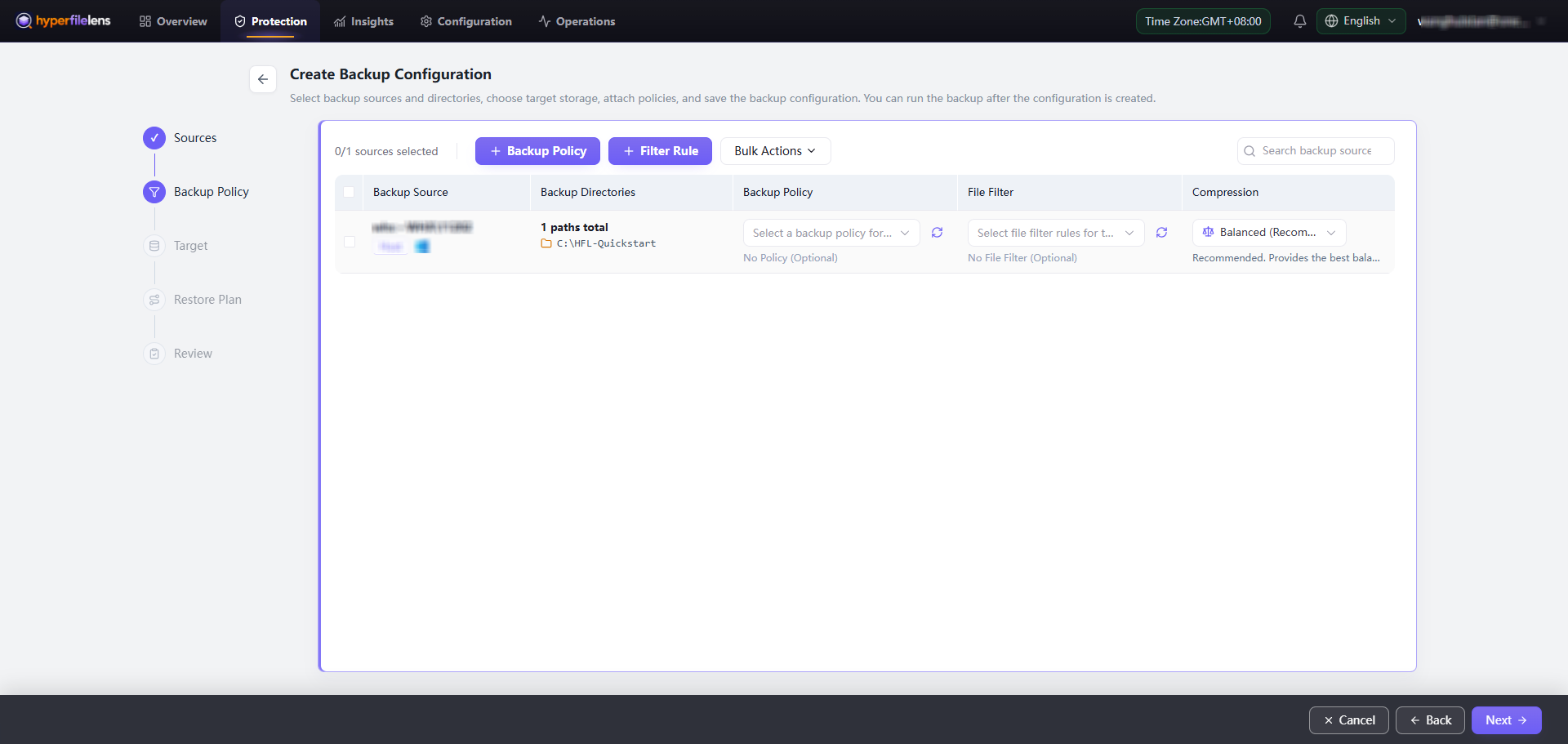
This test must back up everything in C:\HFL-Quickstart. Leave Backup Policy and File Filter unassigned, keep the current compression setting, and select Next.
For recurring backups, use Backup Policy to select or create a policy. To exclude content from snapshots, use Filter Rule to select or create a file filter. Policies and filters affect subsequent backups, so leave them unassigned during this first-use test.
Completion criteria
- The correct Windows host is selected.
- The backup scope contains only the prepared test directory.
C:\HFL-Quickstartappears under Selected Paths.- No filter rule excludes either test file.
If no repository is available on the Target step, continue without leaving the configuration flow: Add target storage.