

Sign in to the console
After installing HyperFileLens Community, sign in with the console URL and initial account shown in the installation output. This first-use guide follows the English product interface.
Sign in
- In the
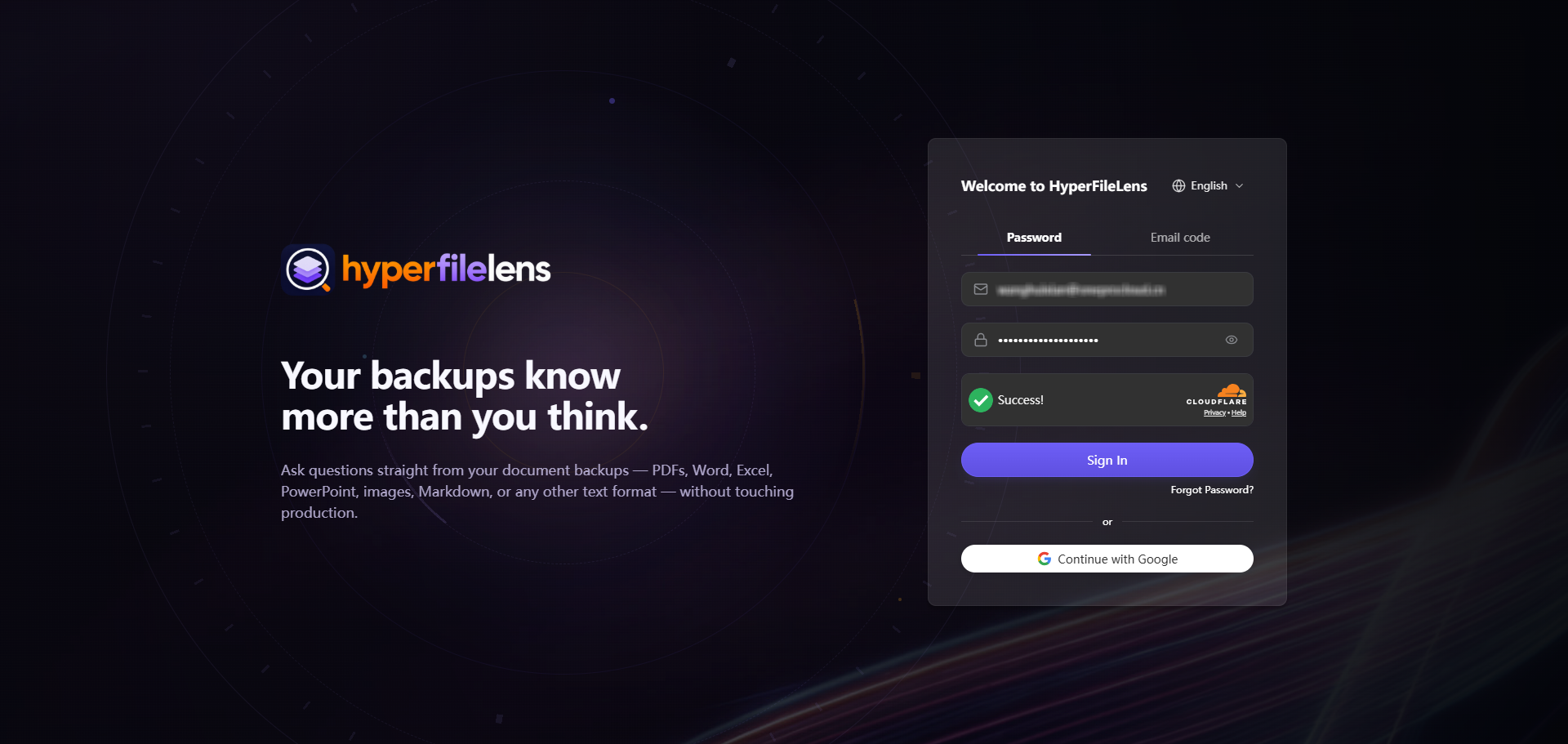
Accesssection of the installation output, findHyperFileLensand open itsURLin your browser. - Switch the interface language to English.
- Select Password, enter the
EmailandPasswordshown underHyperFileLens, and complete the verification challenge. - Select Sign In.
- After the first sign-in, change the initial password immediately.
- Check the current organization, time zone, and system time.
- Confirm that Protection → Backup Wizard opens successfully.
Before continuing
- The browser can access the console without certificate or network errors.
- The test directory is ready at
C:\HFL-Quickstart. - You know which Windows host contains the test directory.