

Policies and retention
A backup policy controls when backups run and how many recovery points are retained. A file filter excludes selected content from future snapshots. Run a manual backup to validate the complete workflow before applying policies to production data.
Backup policies
Open Protection → Backup Policies and select Create Backup Policy. The editor offers Quick Schedule and Advanced Schedule and shows a rule preview on the right. Confirm:
- whether the policy is enabled;
- the schedule time zone, start time, cycle, and interval, or the advanced Cron expression;
- retention for the latest, hourly, daily, and monthly restore points;
- handling for unreadable directories, unreadable files, and unsupported filesystem entries.
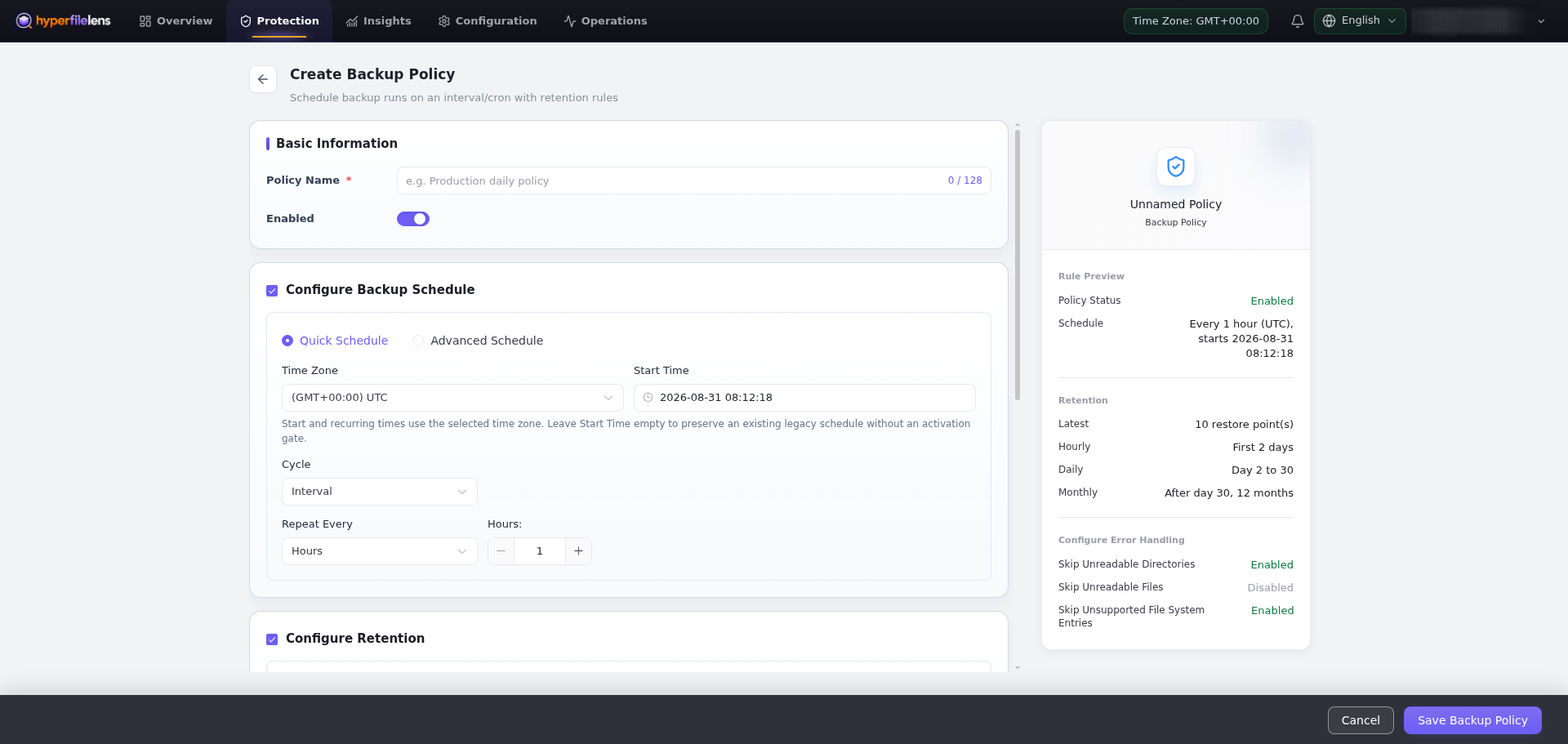
Choose a schedule based on your recovery point objective and the time required to complete a backup. Running backups more frequently does not resolve an offline source, an unreachable repository, or jobs that take longer than the configured interval.
A snapshot can qualify for more than one retention tier. Before saving, inspect Rule Preview and confirm that the target repository has enough capacity. Reducing retention removes older recovery points, while increasing it requires more storage and maintenance.
File filters
Open Protection → File Filters and select Create File Filter. You can use quick presets for temporary files, development and build caches, and system junk, or add custom exclusion rules one per line. Rules are case-sensitive; do not combine multiple rules with commas or semicolons.
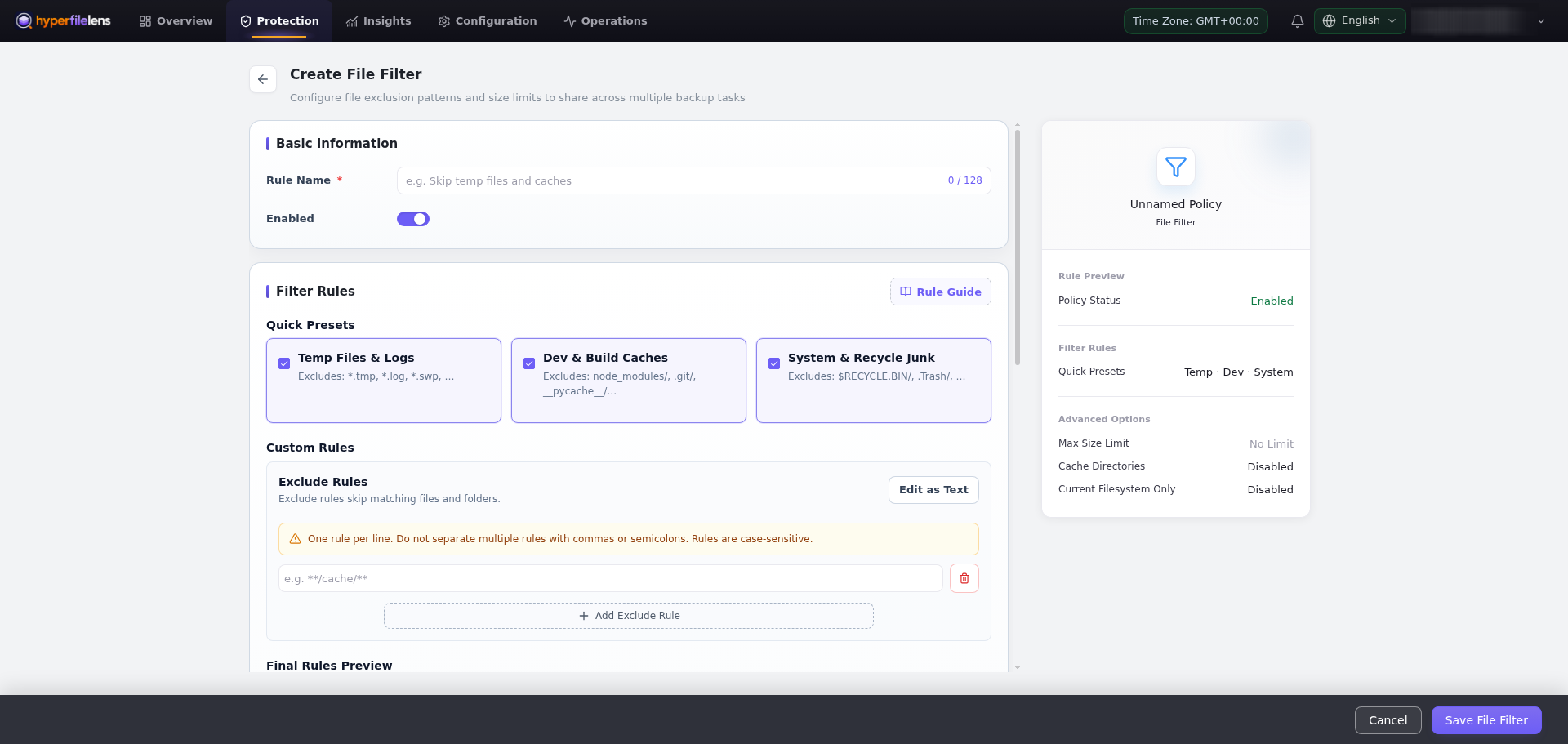
Also review the maximum file size, cache-directory behavior, and Current Filesystem Only setting. Exclude only temporary, cached, or reproducible content that you have confirmed does not need protection. Do not exclude data simply to make the first task run faster.
Rule changes affect future snapshots and cannot add files that were never included in an existing snapshot. Browse the next snapshot after every change.
Assign rules to a backup
After creating a policy or filter, return to Backup Configuration → Backup Setup and select it under Backup Policy or File Filter. Creating a rule alone does not change an existing backup configuration. After saving, check the next trigger time, skipped items, and snapshot contents.