

Restore files and directories
You can run a preset restore plan or create a new manual task. Use a manual task when the snapshot, scope, destination node, destination folder, or conflict policy needs to change.
For your first restore test, restore a small set of sample files to a separate test directory and select Skip. Do not restore test data to the source directory or overwrite existing files.
Before starting
- The source has at least one successful or partially successful snapshot.
- The snapshot contains files or directories that are available for restore.
- The destination Agent is online, and the destination directory is writable.
- The destination disk has enough free space.
- The conflict policy is explicitly set to Skip or Overwrite; use Skip when uncertain.
Create a manual restore
- On Start Backup, select the source and choose Restore.
- Select Create New Restore Task. Run Restore Plan immediately uses the latest snapshot, scope, destination, and conflict policy saved in the backup configuration.
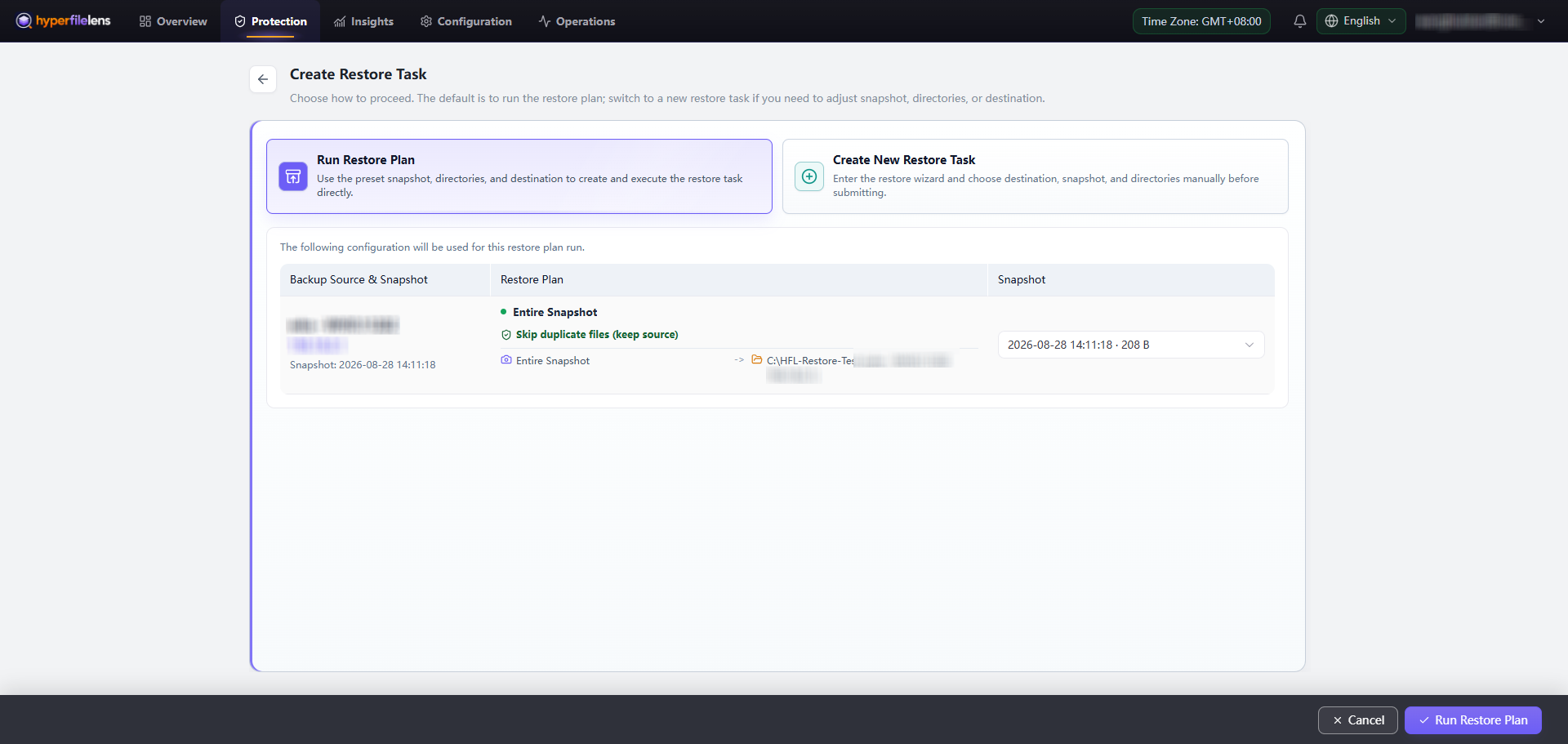
- Under Backups & Snapshots, select the backup and snapshot point.
- Under Restore Targets, select an online destination node.
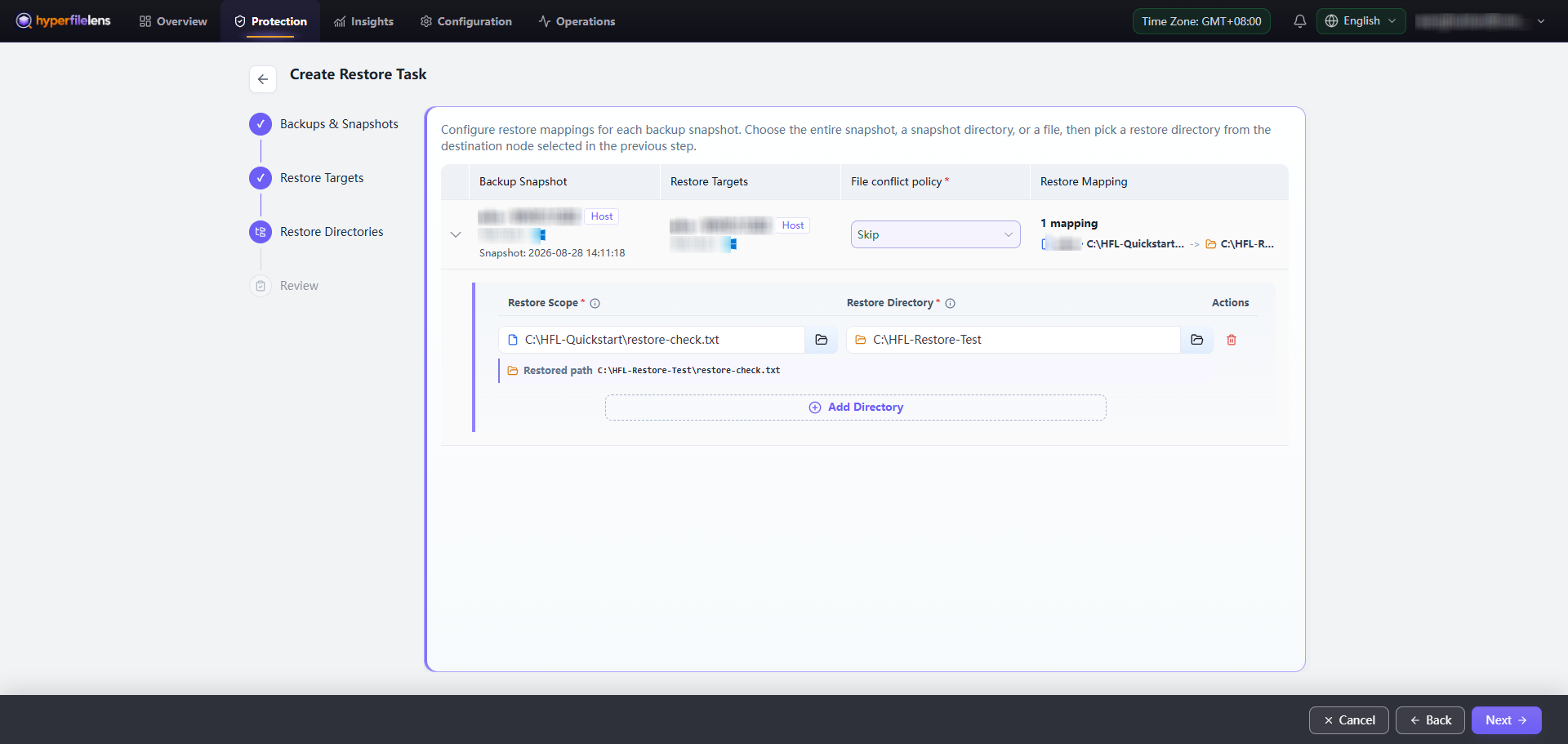
- Select the whole snapshot, a directory, or individual files for each backup.
- Choose the destination directory and check every source-to-destination mapping.
- Select the conflict policy:
- Skip keeps an existing destination file with the same name.
- Overwrite replaces an existing destination file with snapshot content.
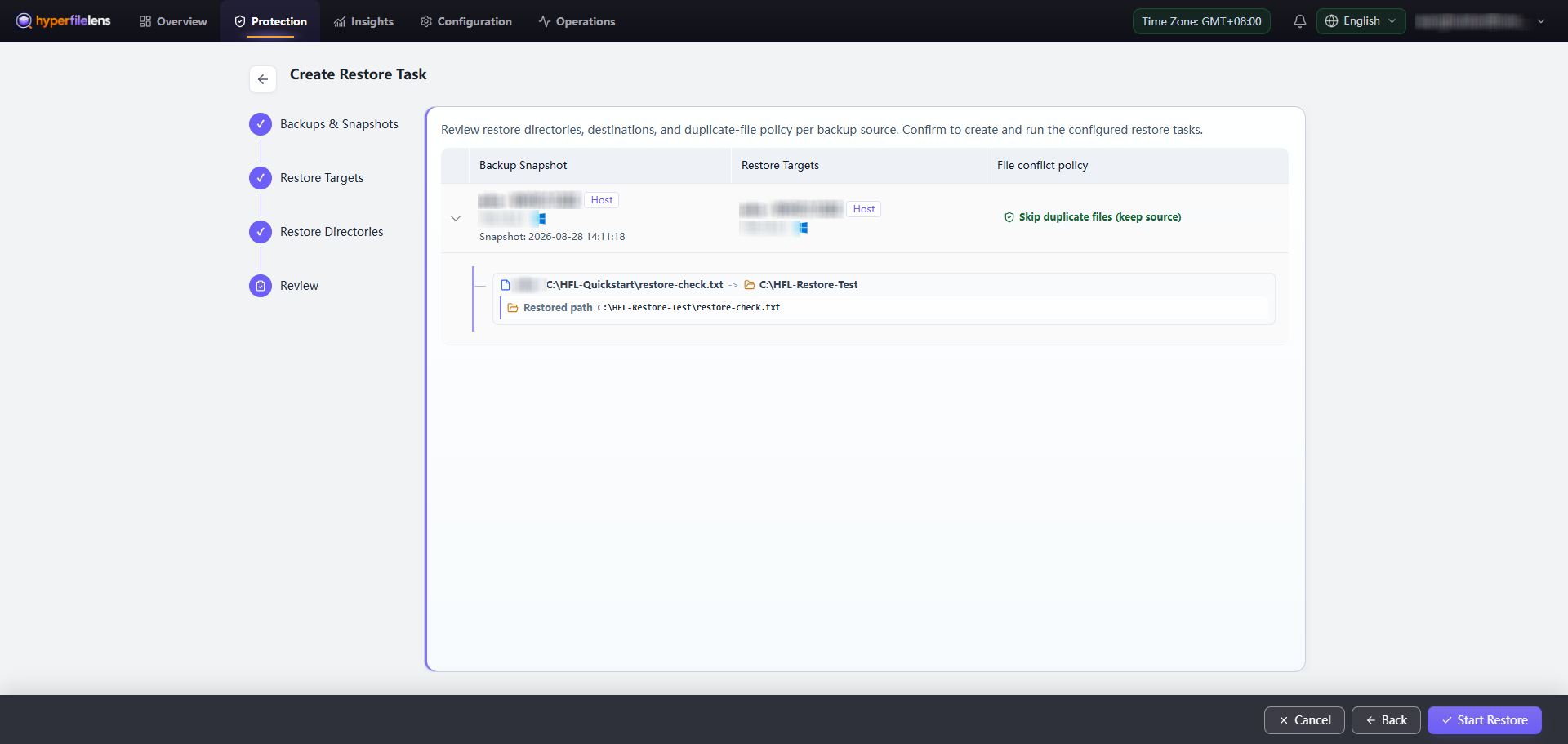
- On Review, verify the snapshot, destination node, restore scope, destination paths, and conflict policy, then select Start Restore.
Overwrite can replace current files. Use it only after independently verifying the destination, path, and current content. Routine validation should use Skip.
Use a restore plan
A restore plan uses the scope, destination, and conflict policy saved with the backup configuration and runs from the latest available snapshot. Sources without a configured restore plan are skipped, and the interface shows the effective run scope before submission.
Plans suit a fixed destination and repeatable recovery exercise. Use a manual task when the destination changes or when you need a different snapshot or subset of files.
Verify the result
After the task finishes, inspect the restored files on the destination host instead of relying only on the console status. A stopped task may leave incomplete files in the destination directory.
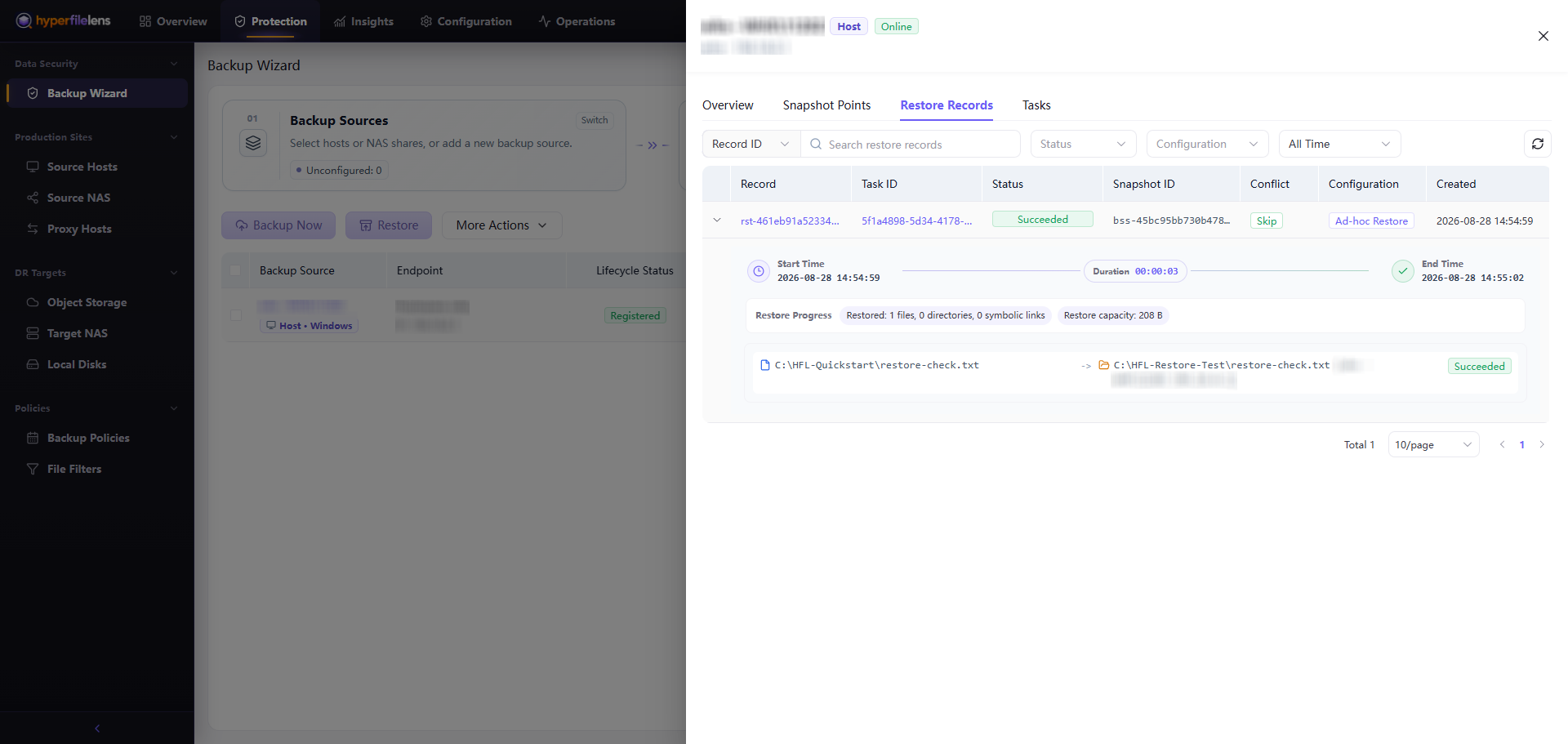
Confirm that Restore Task is Succeeded on Start Backup, then open Restore Records in the source details. Check the record status, file-item status, restored count, and destination path.
For failures, record the failed path, destination node, error code, and task time, then see Backup, Storage, and Restore troubleshooting.
Related pages
- Recover data to a new host after source host failure — use when the original source host is permanently damaged or offline and you need to restore snapshots to a replacement host.