

Create an Insights session
Open Insights → AI Copilot and select New Chat. Each session is tied to one protected snapshot and an explicit file or folder scope.
Create a session
- Under Data Source, select a configured backup source.
- Select Latest available snapshot or a specific snapshot point.
- Under Files and Folders, browse the snapshot and add at least one file or directory.
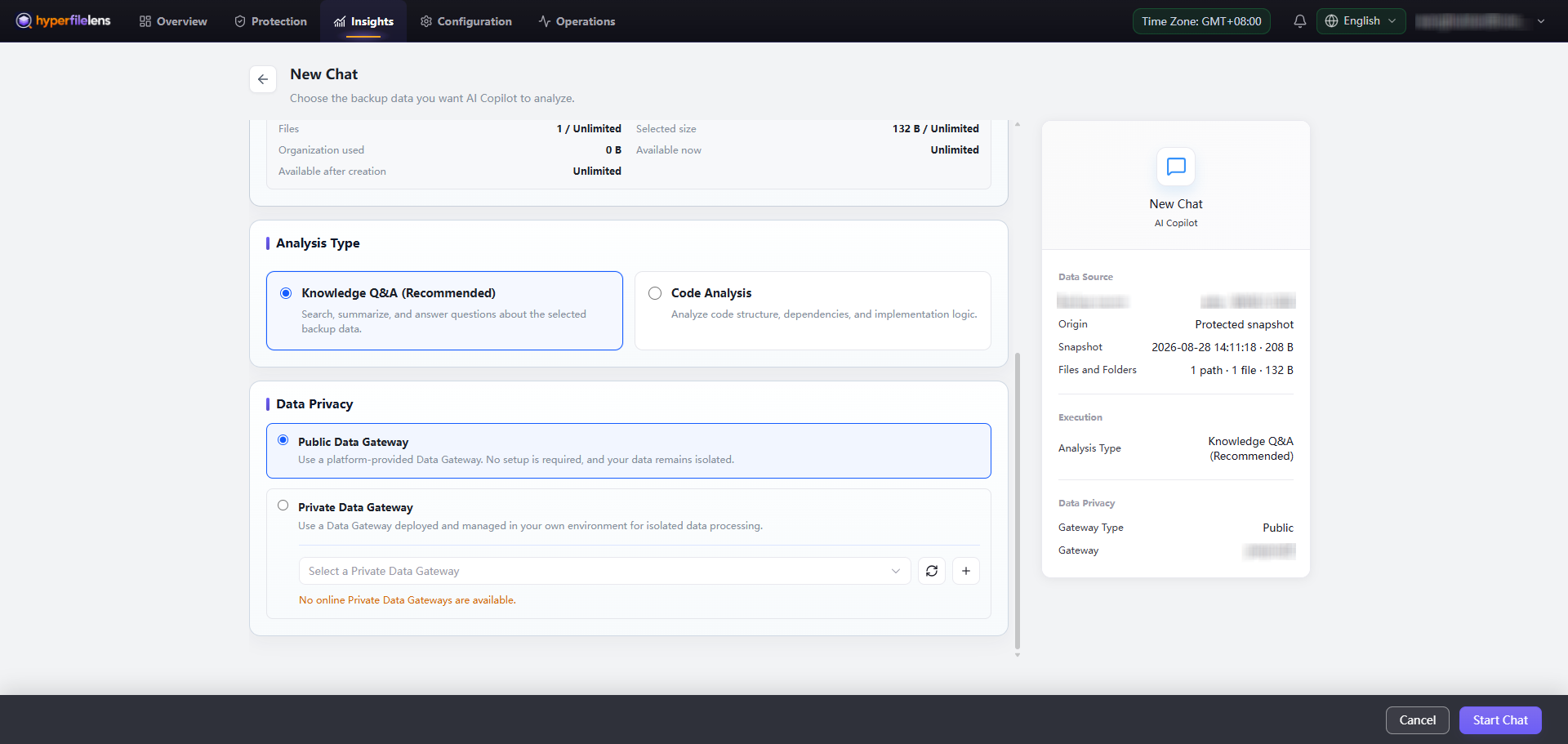
- Choose an analysis type:
- Knowledge Q&A searches, summarizes, and answers questions about documents;
- Code Analysis examines source structure, dependencies, and implementation logic.
- Under Data Privacy, keep Public Data Gateway for automatic platform selection, or select an online Private Data Gateway.
- Check the summary and select Start Chat.
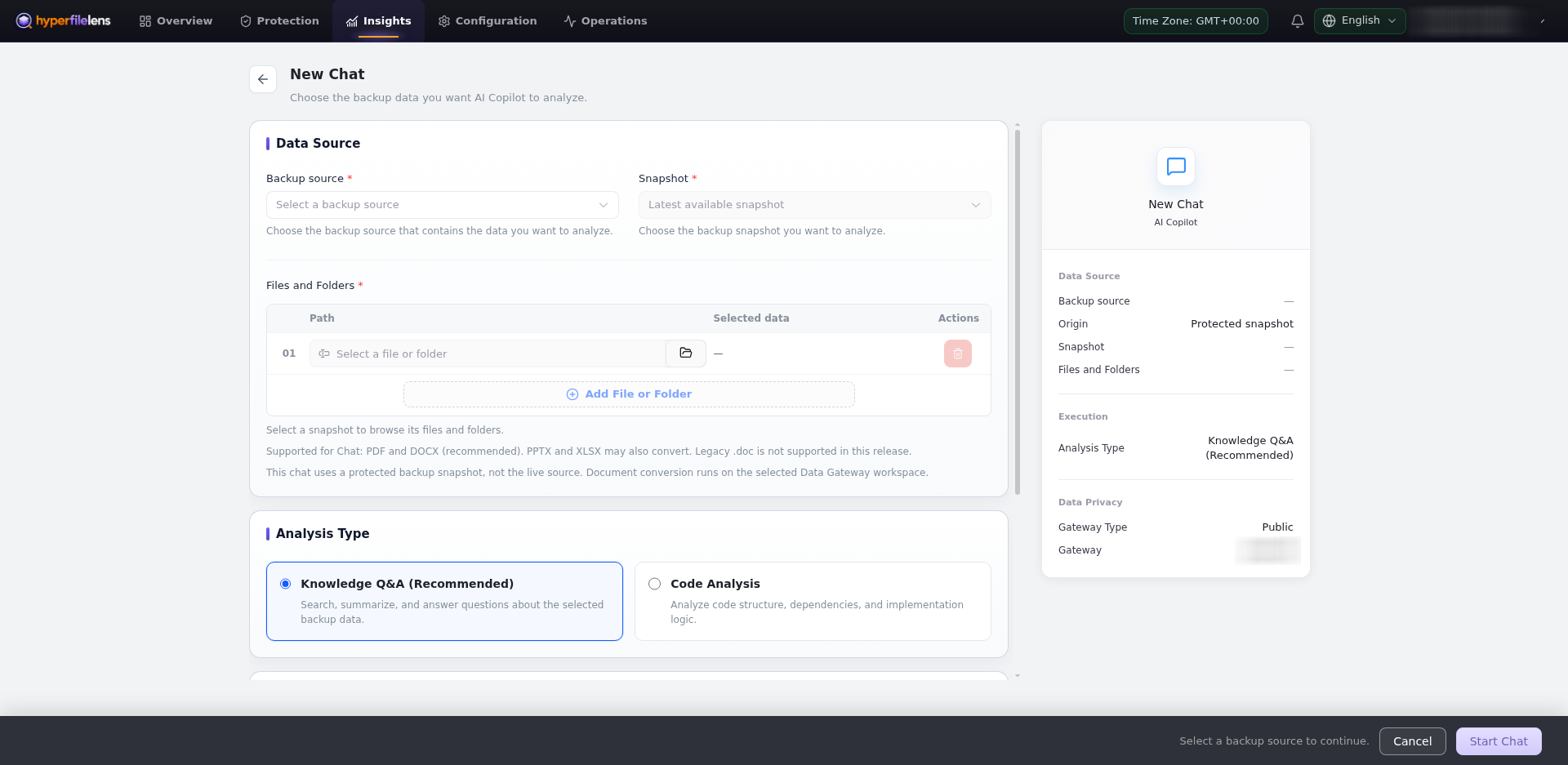
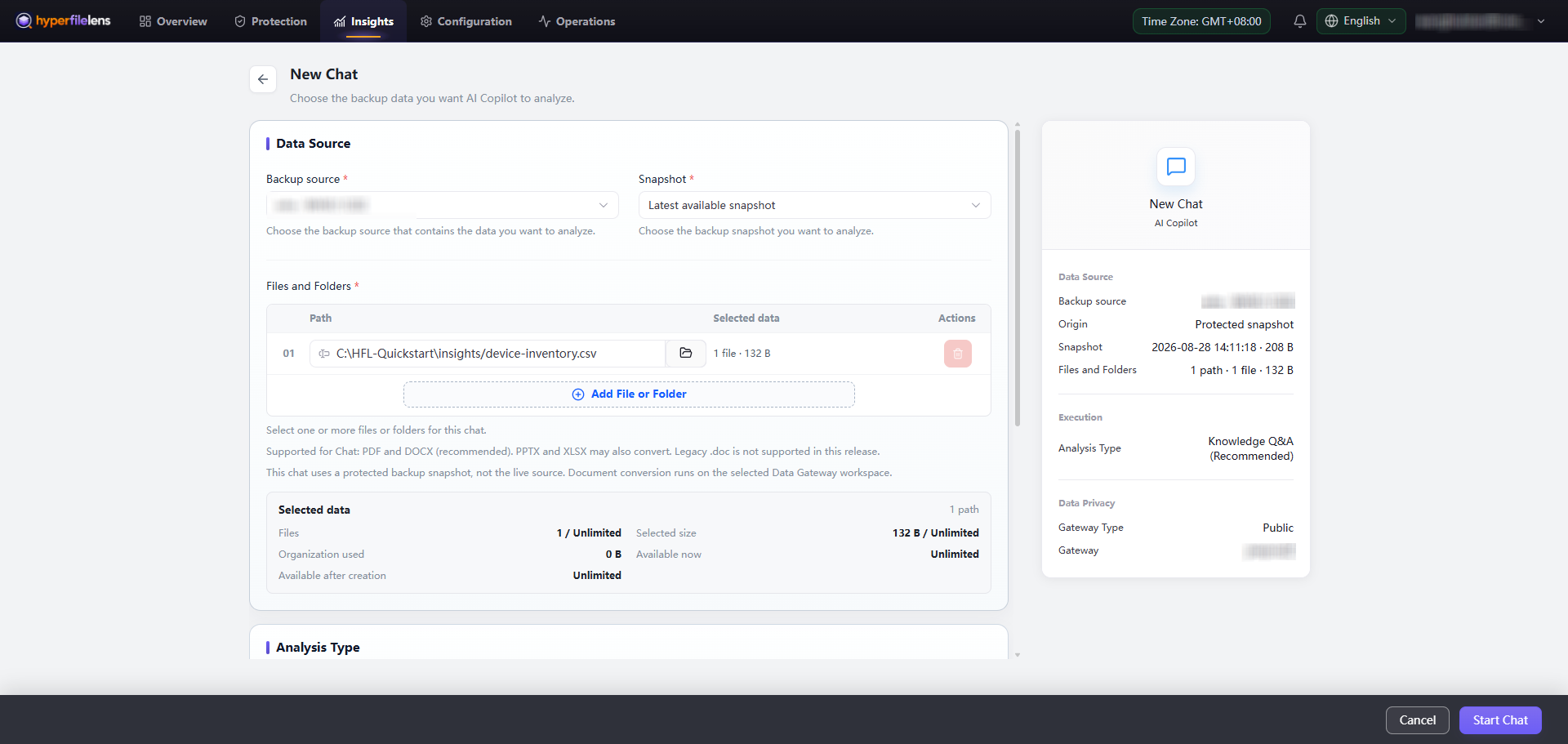
The creation button remains disabled until you have selected a valid source, snapshot, data scope, analysis type, and Data Gateway. Follow the guidance on the page instead of repeatedly submitting the same request.
Wait for preparation
The selected Data Gateway restores the chosen snapshot data to an isolated workspace and prepares it for the session. A session can be queued, preparing, ready, or failed. Wait until it is Ready before asking questions.
Ask and verify
Begin with a narrow question that has a checkable answer. State the expected format, time range, or comparison criteria. For example:
- “List each device and its status. Cite the source rows.”
- “Summarize the termination conditions and cite the relevant section.”
- “Compare these two version folders and list the significant changes.”
- “Identify the main implementation files and explain the call path.”
Open citations to review the source material behind the answer. If the evidence is insufficient, narrow the question or explicitly request citations. A session remains tied to its original snapshot even if the live source files change later.