

View tasks and snapshots
The task status shows whether execution ended; the snapshot contents show what was protected. Check both.
Check the task
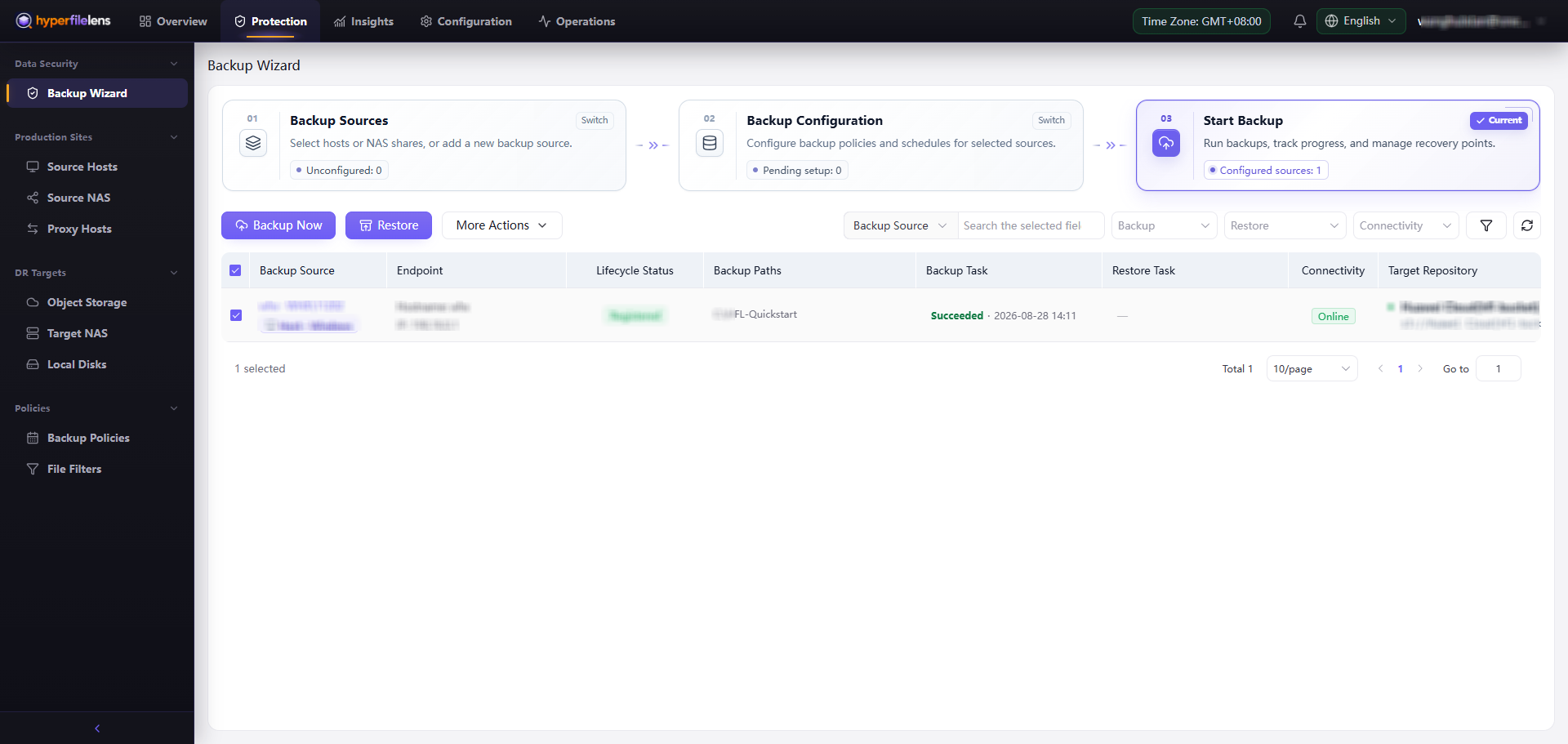
Inspect Backup Task on Start Backup, the backup source details, or Operations → Tasks. Check:
- start time, end time, and duration;
- scanned and transferred data sizes;
- Succeeded, Partially Succeeded, Failed, or stopped status;
- failed directories, skipped files, and errors returned by the Agent.
When an Agent is offline, the control plane may need to wait for reconnection before confirming the final state. Resolve connectivity before making further configuration changes.
Verify the snapshot
Open the backup source details, select Snapshot Points, and then select a snapshot:
- Confirm that it belongs to the intended source and target repository.
- Compare its completion time with the expected run time.
- Compare the total size with the selected source data.
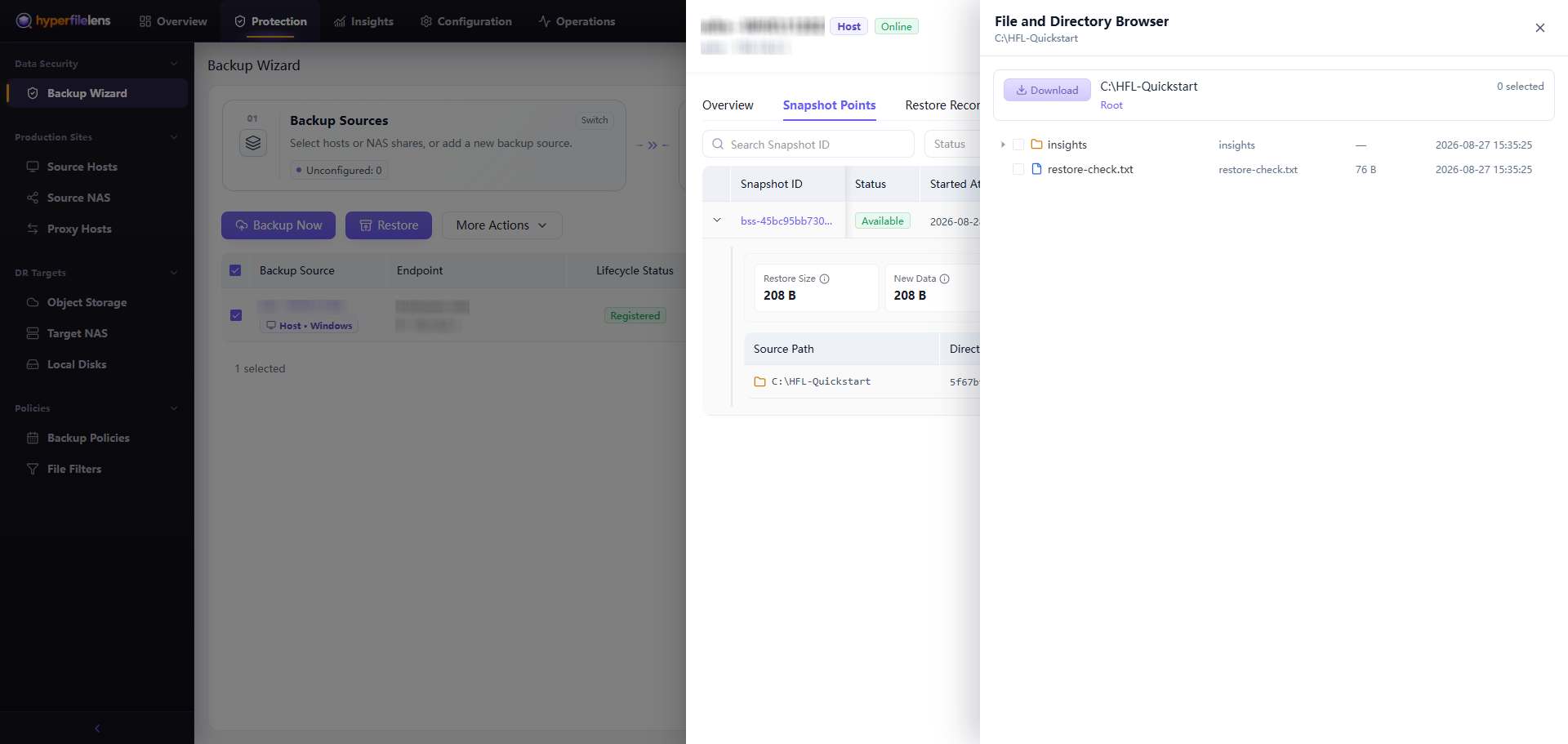
- Browse the directory tree and find a known set of test files.
- Check that important subdirectories, file names, and hierarchy are present.
Only a successful or partially successful snapshot that contains browsable files or directories can be restored. A partially successful snapshot may still contain usable data, but review what is missing before relying on it.
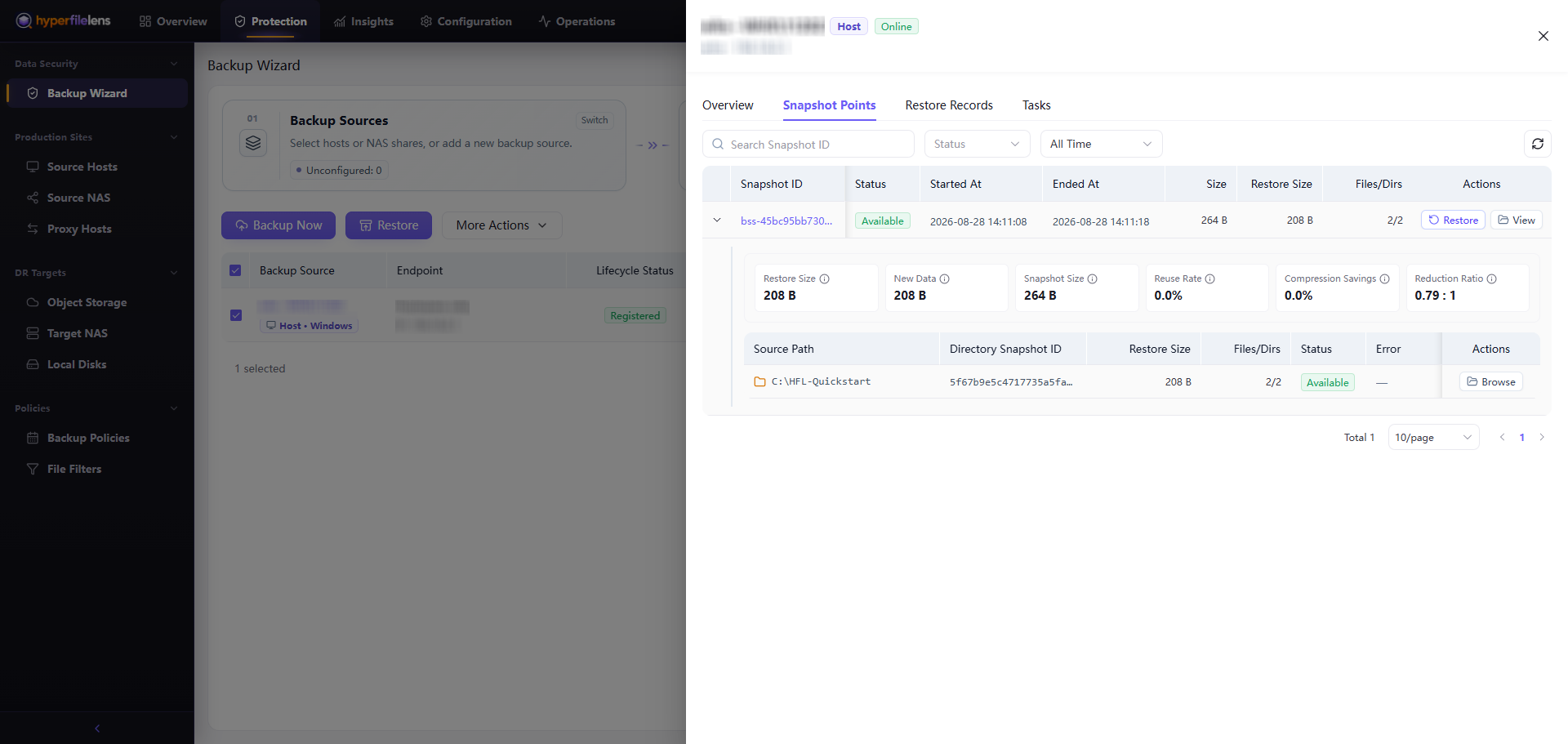
Select Browse Files and expand the directories. File counts and sizes in this view indicate what the snapshot contains. Downloading a snapshot file lets you inspect its contents, but it is not a substitute for testing the restore workflow.
Validate recovery
Restore a small set of files to an independent test directory and confirm:
- each file opens and its content matches the expected source;
- the directory hierarchy and file names are intact;
- the selected conflict policy behaved as expected;
- the restore record agrees with the files on the destination host.
Schedule restore tests according to your recovery requirements. Retaining more snapshots does not, by itself, confirm that the data can be recovered.