

Recover data to a new host after source host failure
When the original backup source host is permanently damaged or offline, you can still recover your data from existing snapshots to a replacement host. The snapshots remain in the target storage repository and are available for restore as long as the source node, repository, and snapshots have not been deleted.
Before starting
- The damaged original host does not need to come back online.
- The source node, repository, and historical snapshots must not be deleted before recovery is verified.
- The original source node must have at least one recoverable snapshot. The Restore button is available regardless of whether the node is online or offline.
- A replacement host is provisioned with the operating system installed and disk space available.
- The HyperFileLens Agent is installed on the new host and the host is online in the console.
- The new host receives a new node identity and does not automatically inherit the original backup configuration.
Recover to a new host
1. Verify that snapshots are still available
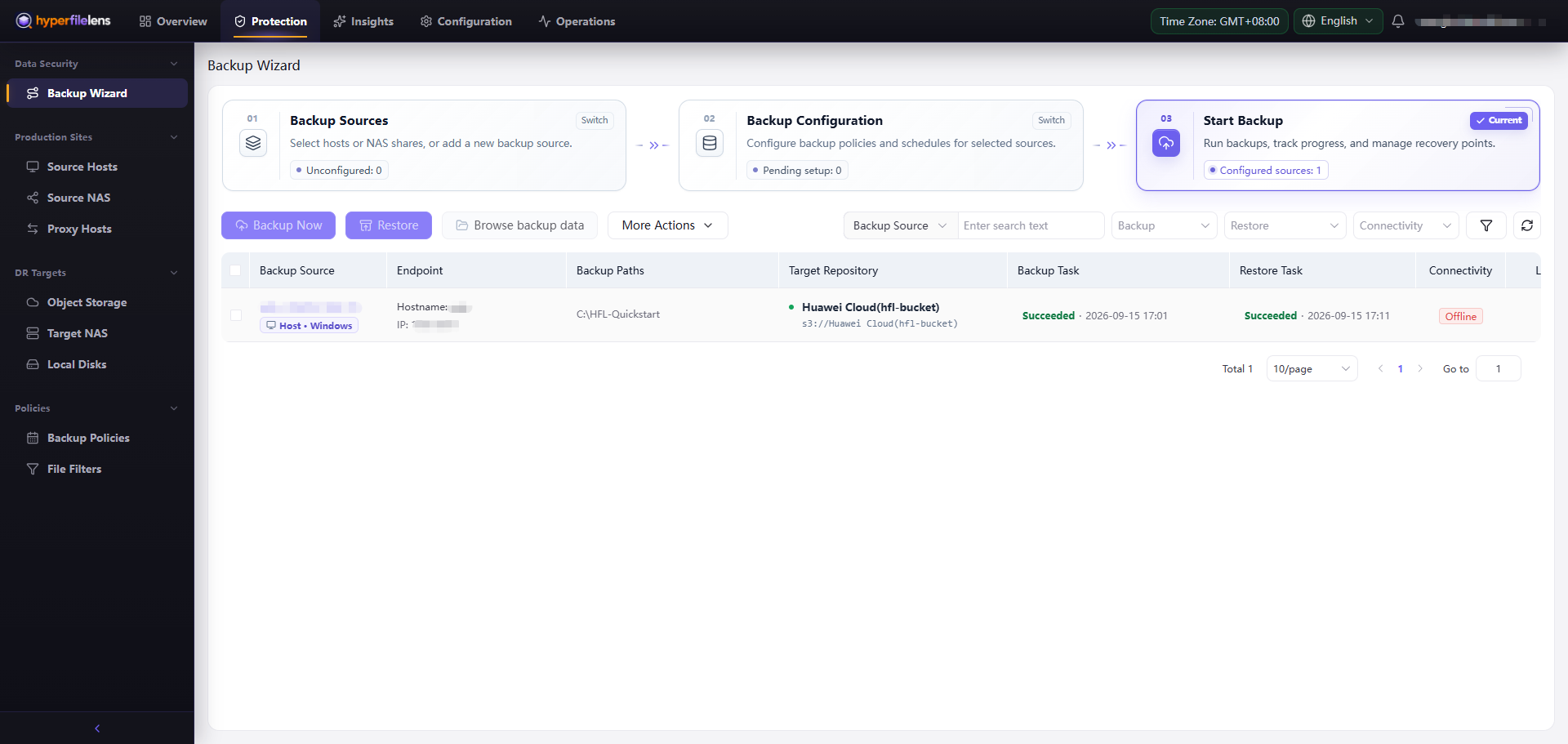
- Open Protection → Start Backup in the console.
- Locate the original source node in the source list. Its status shows Offline.
- Confirm the node still appears and its historical backups and snapshots are listed.
Open the source node detail to confirm that the historical snapshot points are still available:
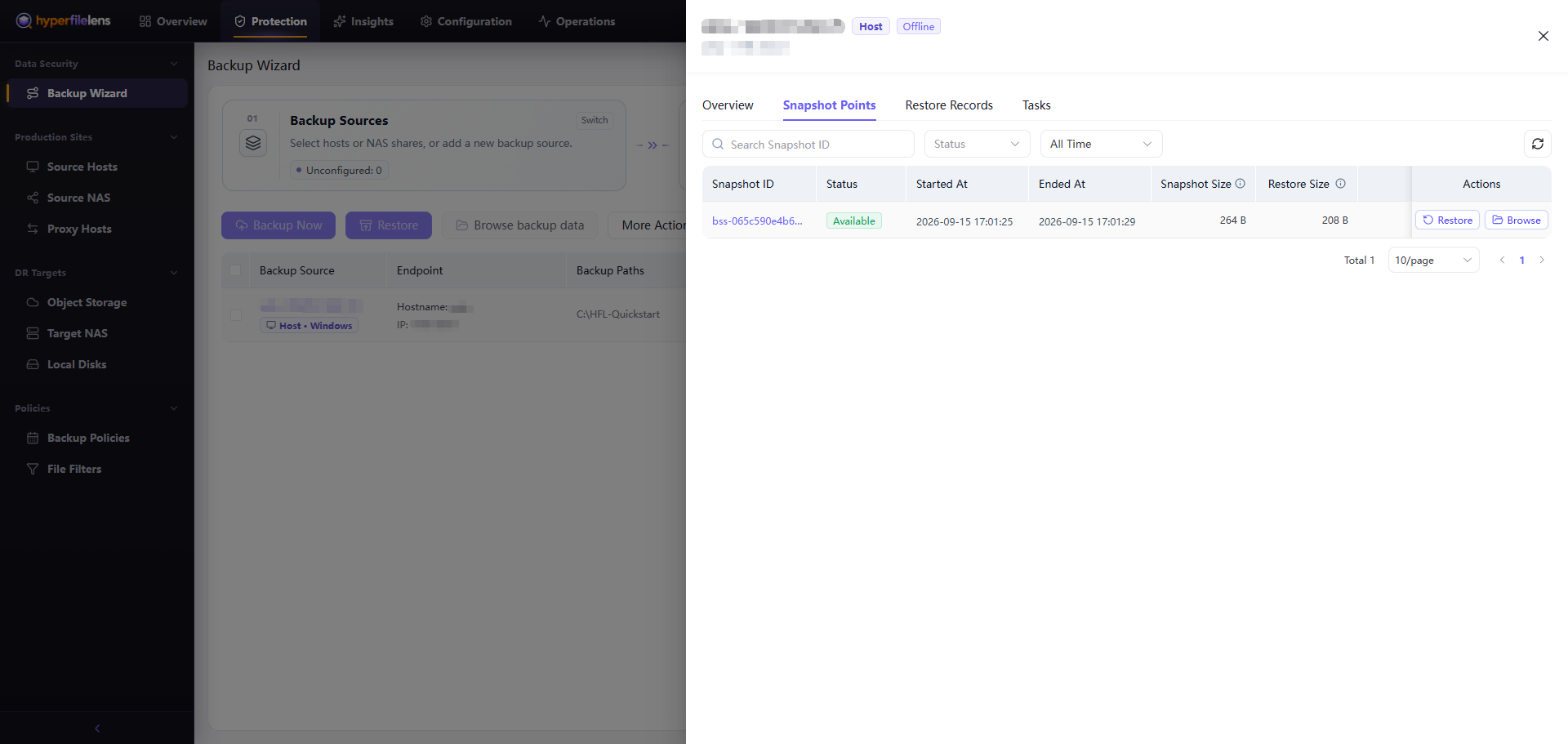
Do not delete the offline source node, its repository, or its snapshots until recovery is complete and verified.
2. Add the new host and create a backup configuration
- On the replacement host, install the HyperFileLens Agent.
- Register the Agent to the same console. The new host appears as a separate Online node with a different identity.
- Add the new host as a backup source and create a backup configuration for it. Follow Create and run backups through the configuration steps — select the backup scope, assign a target repository, and save the configuration.
- Do not run the backup yet. The restore target list only shows hosts that have a backup configuration. Saving the configuration is enough to make the new host appear as a selectable restore target.
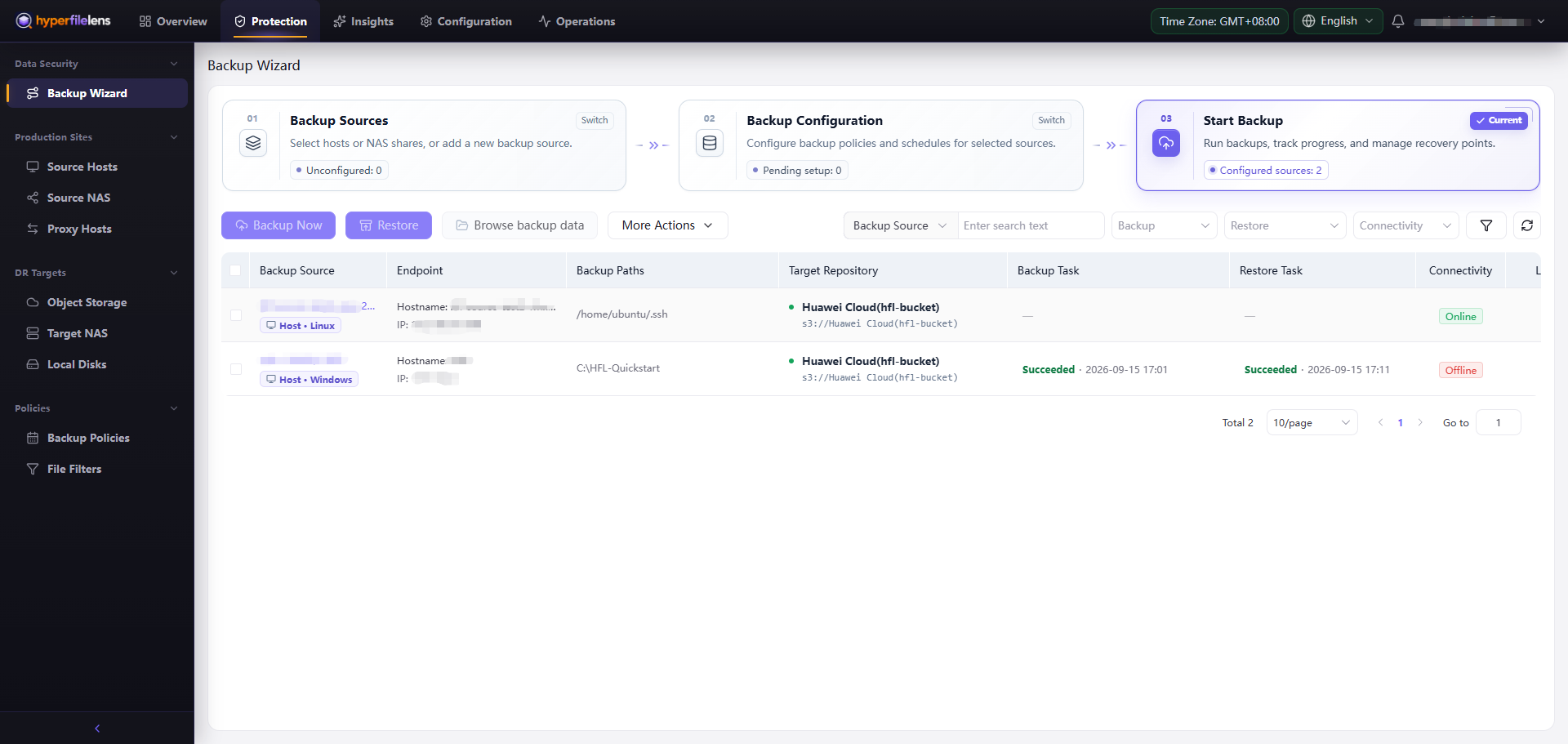
3. Restore snapshots to the new host
The Restore button is available as long as the offline source node has recoverable snapshots. The new host now appears in the restore target list because its backup configuration exists.
- On Start Backup, select the offline original source node and choose Restore.
- Select Create New Restore Task. Do not use Run Restore Plan — the plan may reference the original host as the destination.
- Under Backups & Snapshots, select the backup and the desired snapshot point.
- Under Restore Targets, select the new replacement host as the destination node.
- Select the snapshot scope — the entire snapshot, a directory, or individual files.
- Choose a destination directory on the new host.
- Set the conflict policy:
- Skip — safe for a first validation pass.
- Overwrite — use only when you are certain about the target contents.
- On Review, verify the snapshot, destination node, restore scope, destination paths, and conflict policy, then select Start Restore.
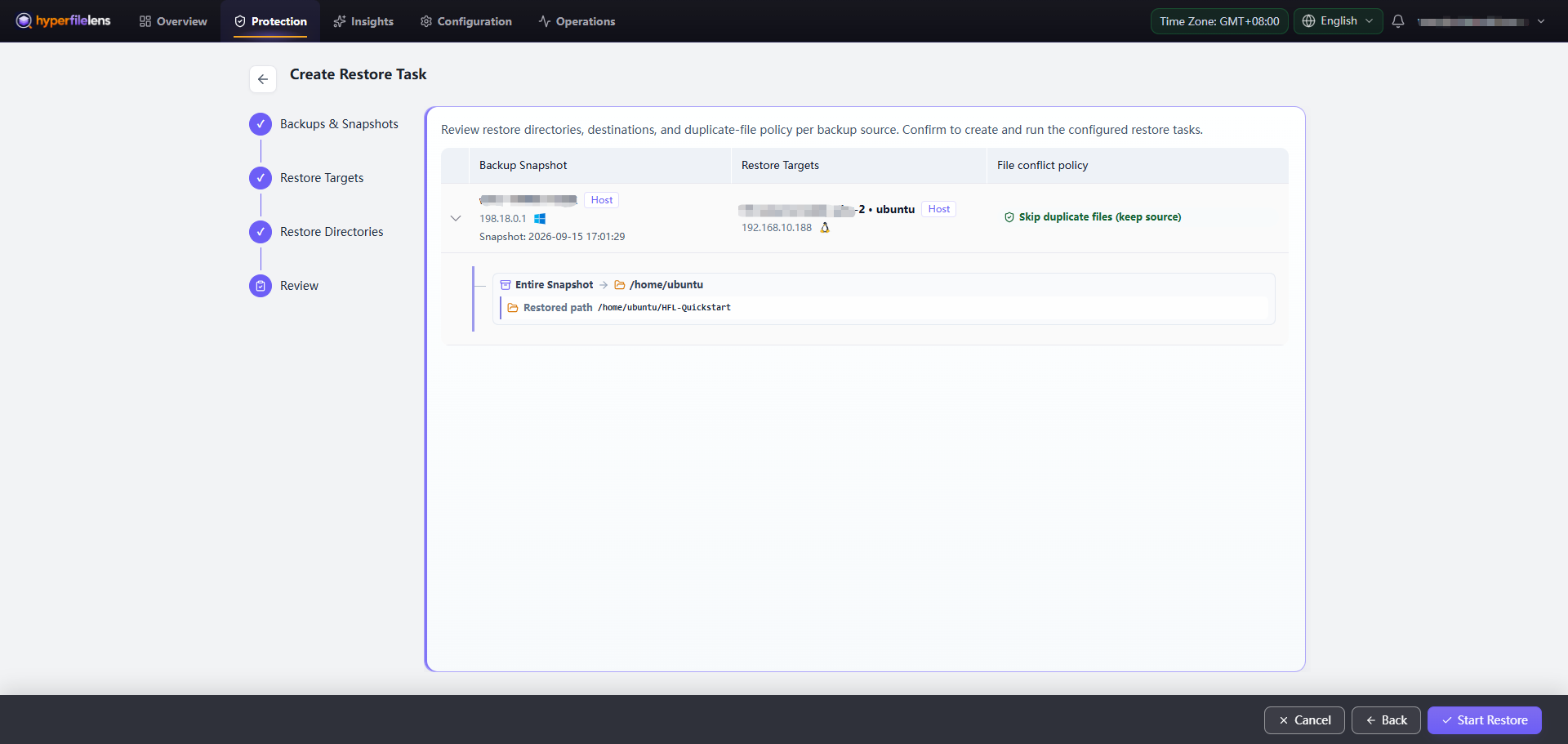
4. Verify the restored files
- After the restore task finishes, confirm that Restore Task is Succeeded on Start Backup.
- Open Restore Records in the original source node details and check the record status, restored count, and destination path.
- On the new host, inspect the restored files in the destination directory. Open a sample file and confirm its content matches expectations.
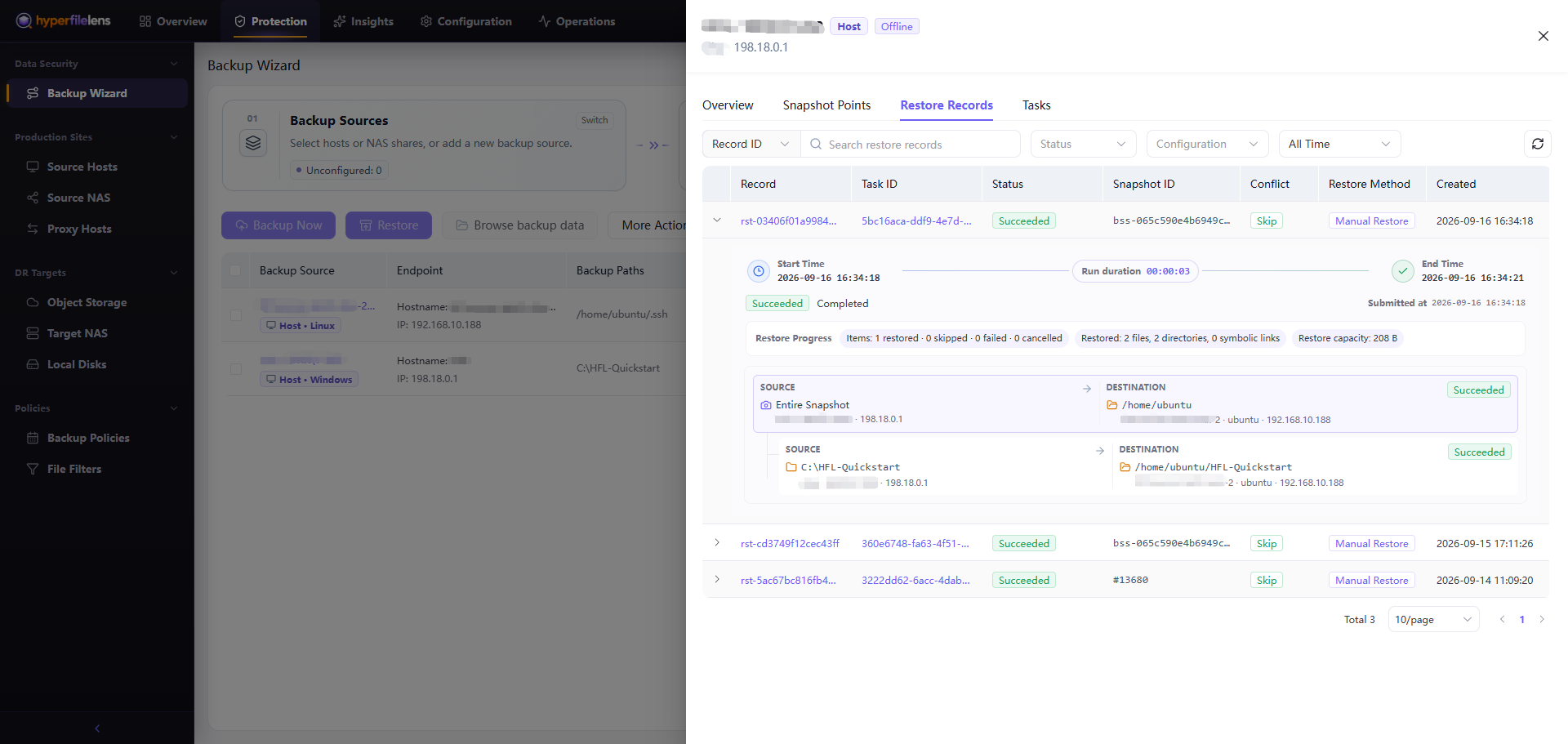
Do not delete the original node, repository, or snapshots until you have confirmed that all required files are intact on the new host.
5. Run the first backup for the new host
The new host already has a backup configuration from step 2, but no backup has been run yet. Now that recovery is verified:
- On Start Backup, select the new host and choose Backup Now.
- Wait for Backup Task to become Succeeded. See Create and run backups if you need a detailed walkthrough.
- Configure a backup policy and retention suitable for the new host.
- Optionally configure a restore plan for the new host once the destination is established.
Clean up the original node (optional)
After recovery is verified and the replacement host is producing its own snapshots, you may remove the offline original source node if it is no longer needed. Consult your data retention requirements before deleting the original node, repository, or its historical snapshots.